 VibeCode
MCP servers
MCP (the Model Context Protocol) is a common way to give an AI assistant extra tools. If you already use MCP servers with another tool, you can add the same servers here, and agents can use their tools next to the built-in ones.
Add a server
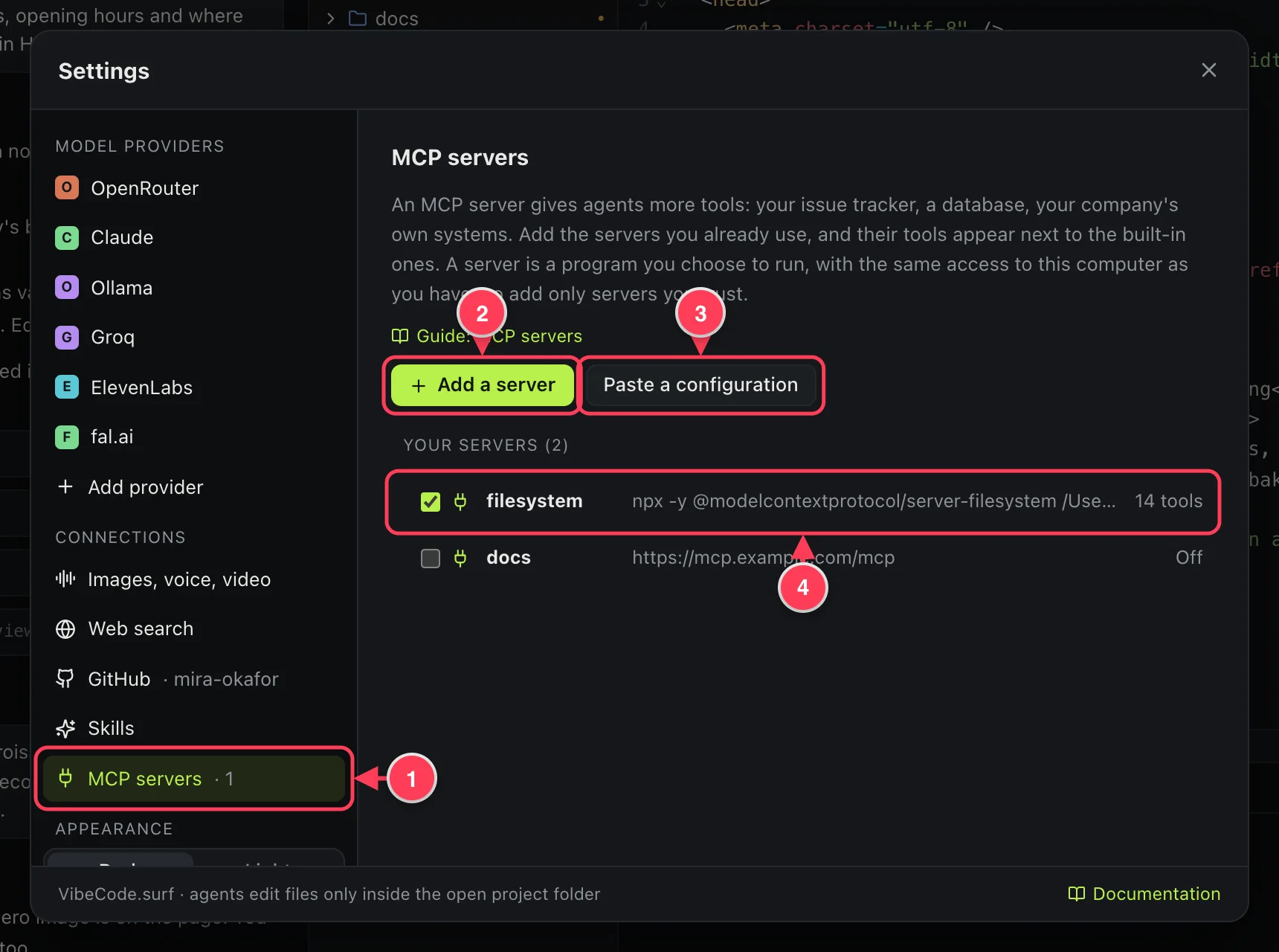
- MCP servers.
- Add a server.
- Paste a configuration from another tool.
- Each server, with how many tools it offers. The tick turns it on or off.
- Open Settings and choose MCP servers.
- Press Add a server and give it a short name, such as
github. - Choose where it runs: On this computer or At an address.
- Press Save and test. The page shows the tools the server offers, or what went wrong.
| Kind | What you enter |
|---|---|
| On this computer | The command that starts the server, as you would type it in a terminal, and any environment variables it needs (an API key, for example). The server runs in the folder of the open project. |
| At an address | The address of the server, and any headers it needs, such as Authorization: Bearer …. |
An example command
npx -y @modelcontextprotocol/server-filesystem /path/to/folder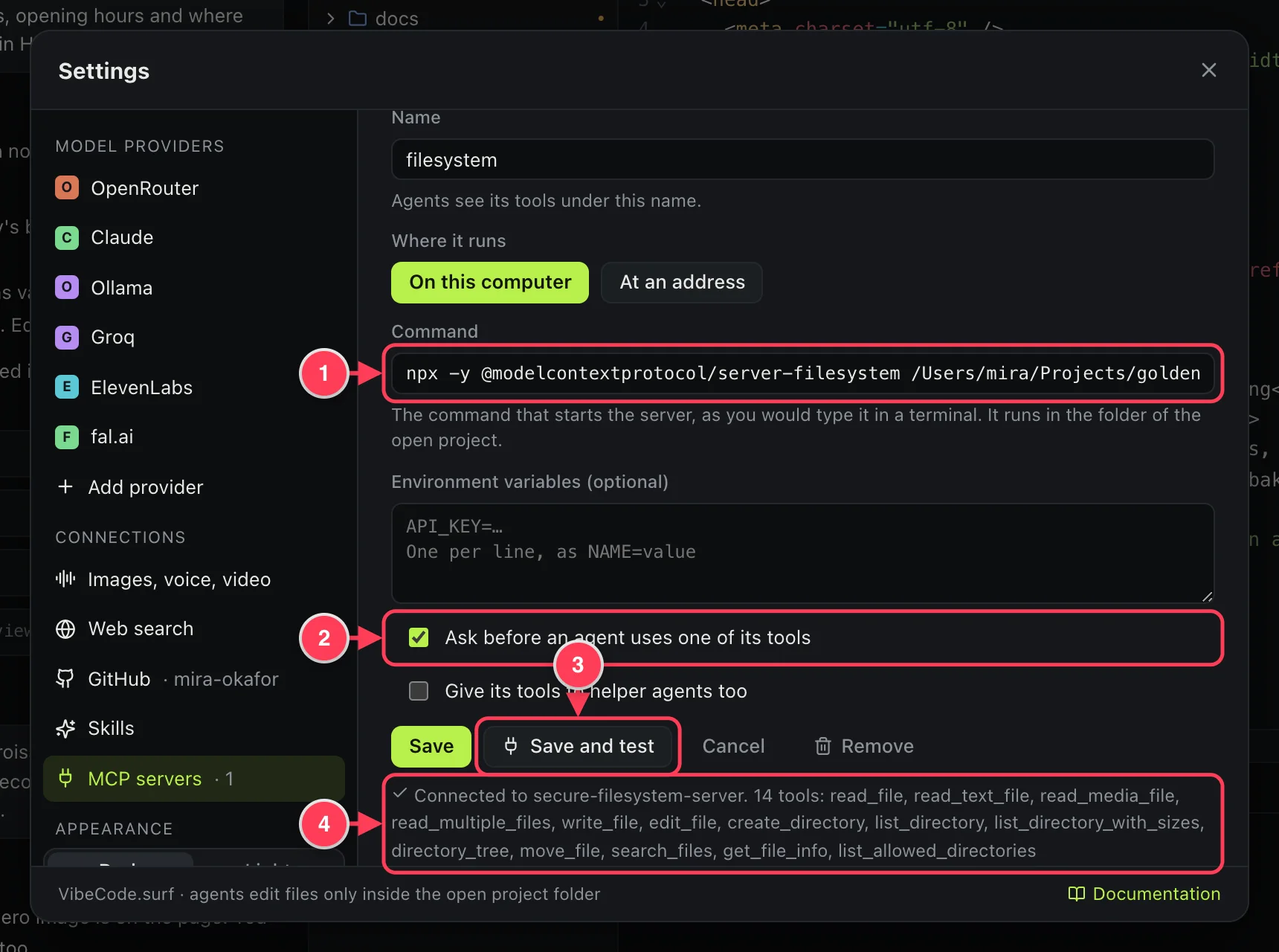
- The command that starts the server.
- Ask before an agent uses one of its tools.
- Save and test.
- What the server answered: its name and its tools.
Paste a configuration from another tool
Press Paste a configuration and paste the mcpServers block that Claude Desktop, Cursor and other tools use. Each entry becomes a server in the list. Servers whose name is already there are skipped.
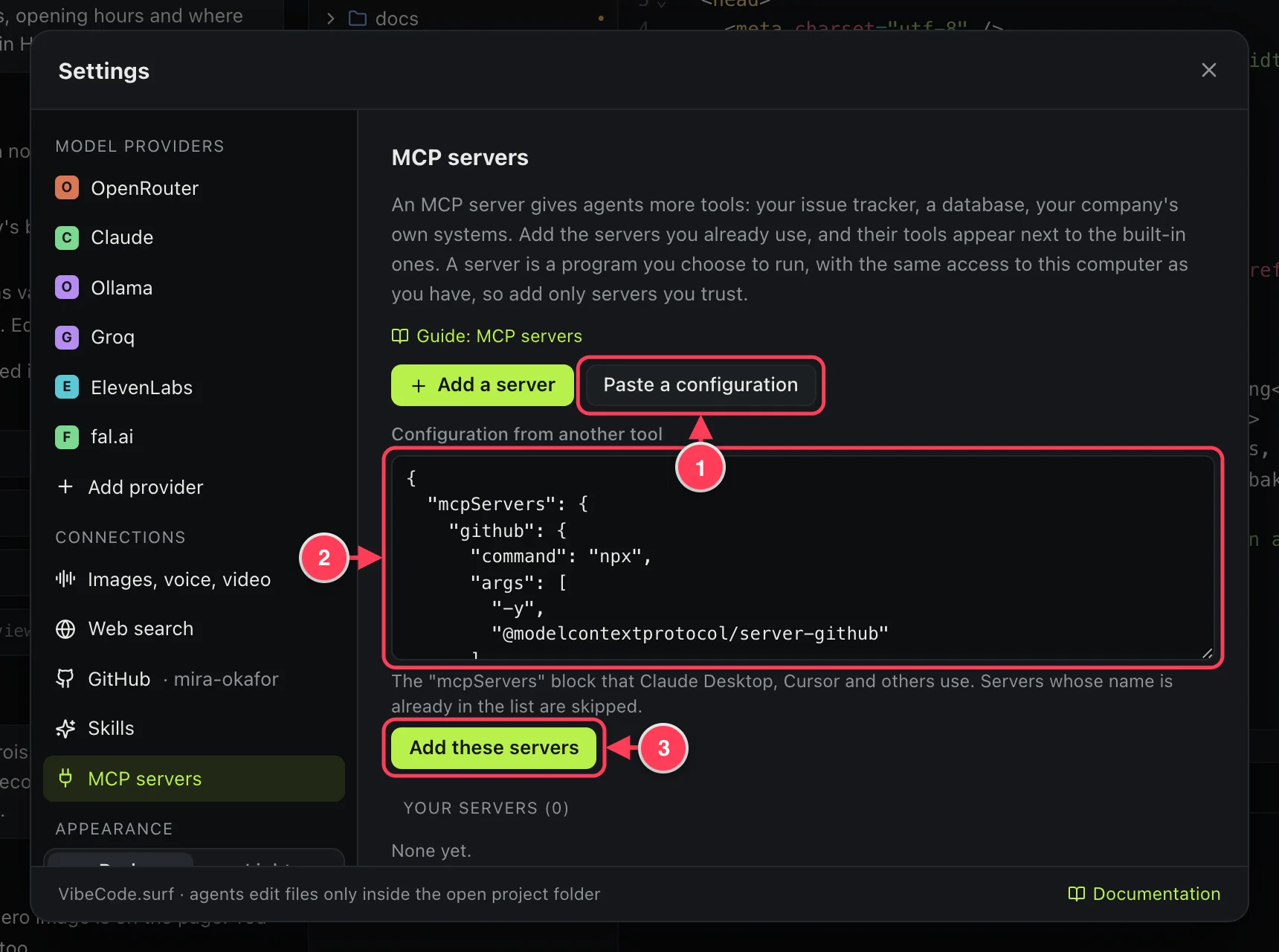
- Paste a configuration.
- The
mcpServersblock. - Add these servers.
A configuration that can be pasted
{
  "mcpServers": {
    "github": {
      "command": "npx",
      "args": ["-y", "@modelcontextprotocol/server-github"],
      "env": { "GITHUB_PERSONAL_ACCESS_TOKEN": "your token" }
    },
    "docs": { "url": "https://example.com/mcp" }
  }
}
How agents use the tools
- A server starts when you open a project, so its tools are ready for your first message. A server that runs on this computer gets one process per open project.
- In the chat, a tool from a server shows the server name and the tool name, with what was sent and what came back.
- Before a tool runs, the agent asks. Always allow this server stops the asking for that server; you can turn it back on in the server’s settings.
- By default only the agent you talk to gets the tools. Tick Give its tools to helper agents too if helpers need them.
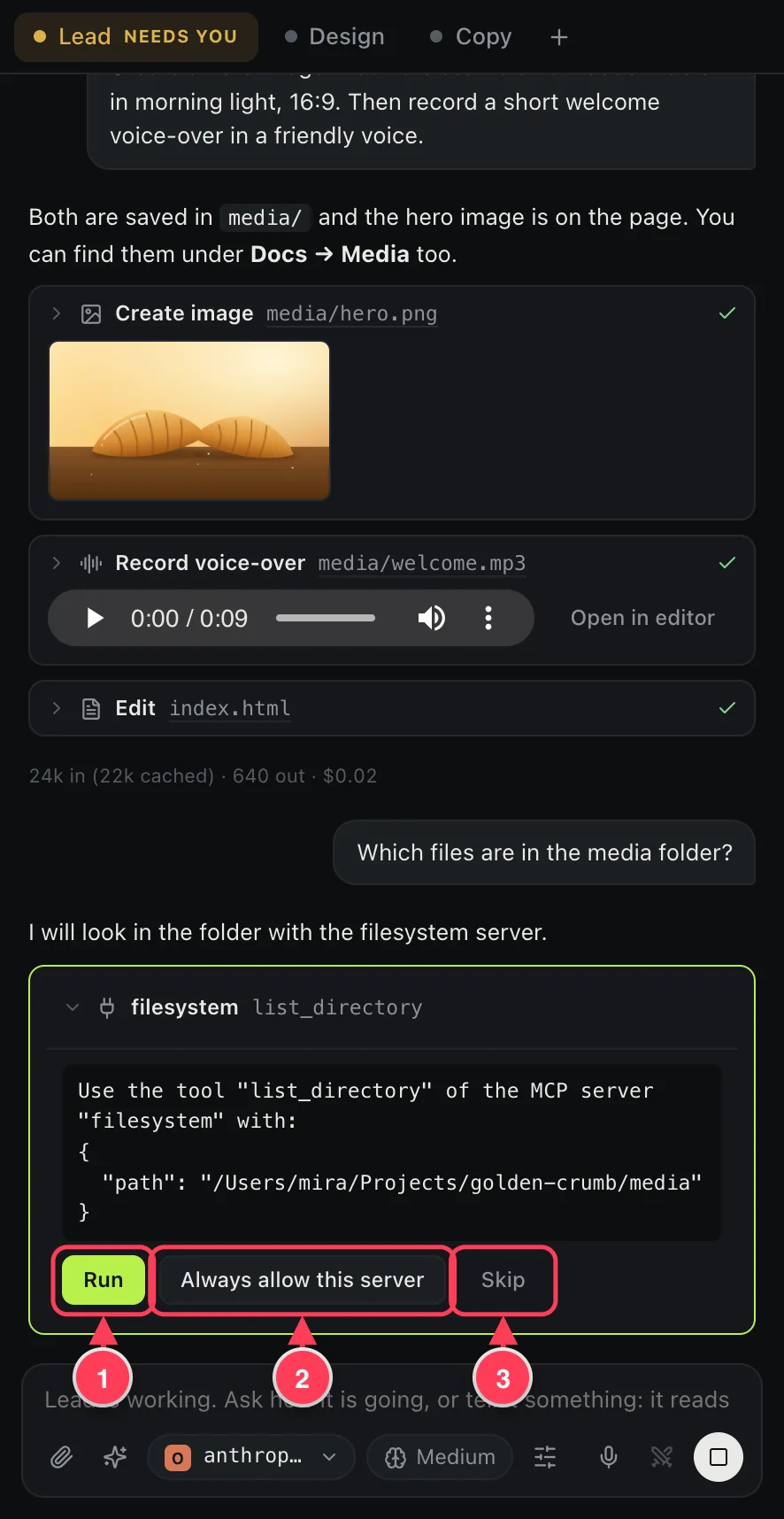
- Run this once.
- Always allow this server.
- Skip.
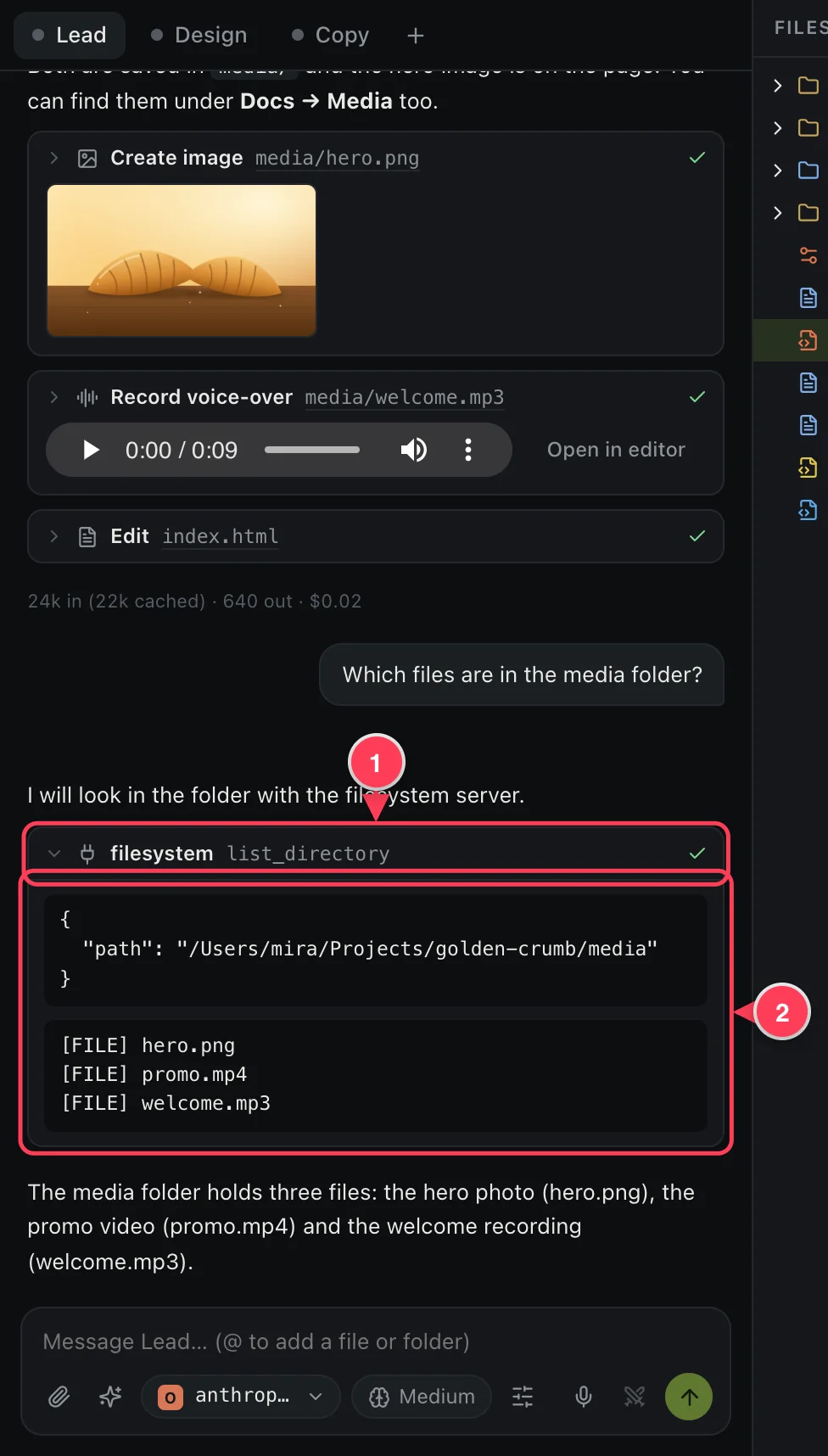
- The server and the tool.
- What was sent, and what came back.
Every tool is described to the model on each reply, so a server with many tools adds tokens to every turn. Turn off the servers a project does not need.
Safety
- A server that runs on this computer is a program with the same access as you have. Add only servers you trust.
- Keys and tokens you enter are stored on this computer with your other settings, and are sent only to the server they belong to.
- What a tool returns is read by the agent like any other text. A server you do not control can return misleading instructions, so keep asking turned on for those.
What is supported
- Tools. Resources and prompts are not offered to agents yet.
- Servers that run on this computer, and servers reached over HTTP (the Streamable HTTP transport).
- Servers that speak the current MCP revision and the earlier ones that start with a handshake.
- Not yet: servers that ask you to sign in through a browser (OAuth), and the older HTTP+SSE transport.
When a server does not start
- Could not find the program. The command must work in a terminal on this computer. Install what it needs first (Node.js for
npx, uv foruvx), then restart the app so it picks up the change. - The server stopped. The message shows the last lines the server printed. A missing API key is the usual cause.
- The server refused the request (401 or 403). Check the Authorization header.
- The first start of an
npxoruvxserver can take a while, because the package is downloaded. An agent waits up to 20 seconds; a slower server joins from the next message.