 VibeCode
Compare two models
Compare answers the question “which model does this job better?” by running them both. Each model works in its own private copy of the project, so they cannot disturb each other or your files. You look at both results and keep one.
Start a comparison
- Write your request in the message box. Do not send it.
- Press the crossed-swords button next to Send.
- Pick the second model. The first is the model the agent already uses.
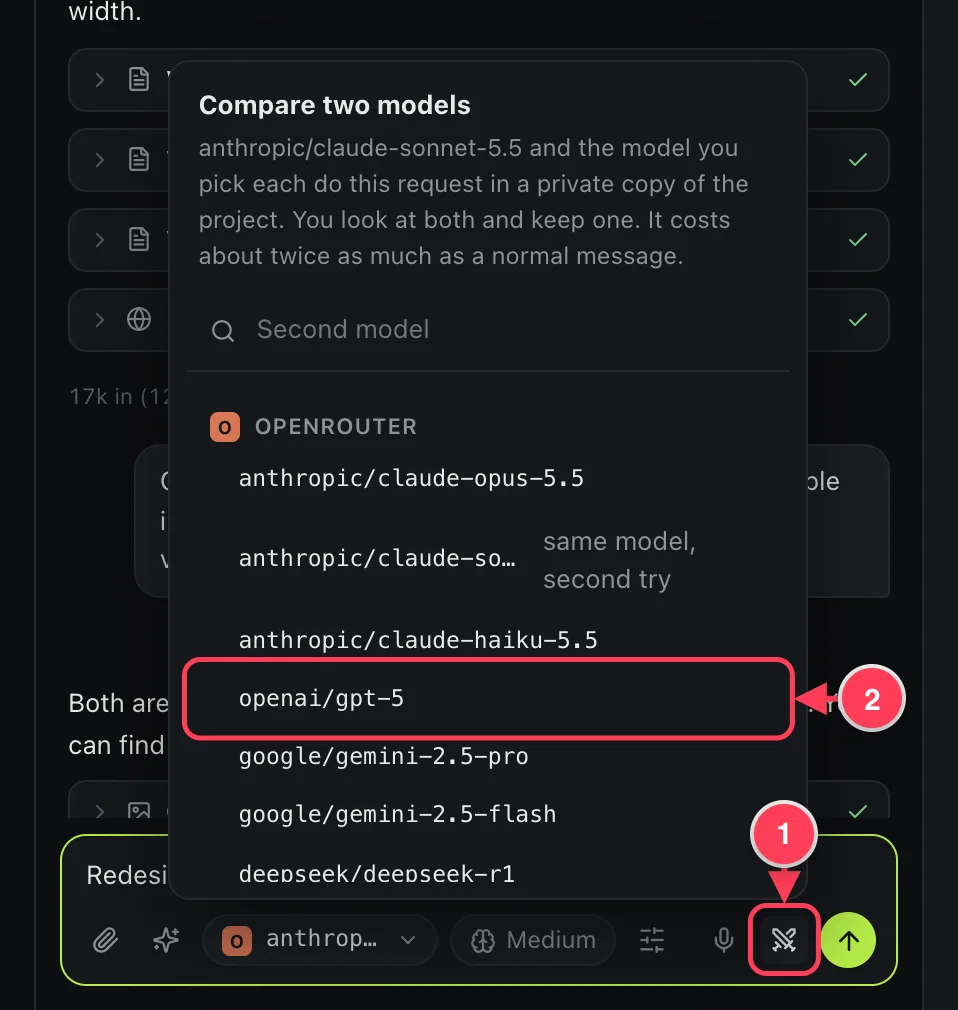
- The Compare button. It is greyed out until you have written a request.
- The second model. Picking the same model again gives you a second try.
A comparison costs about twice as much as a normal message. It needs Git on your computer, because that is how the copies are made.
Look at both results
A Compare view opens with two sides, A and B. For each side you see whether it is still working, how long it took, what it cost, and how many files it changed.
- Preview runs that copy of the project so you can try it.
- Changes lists the files it added, changed or deleted, with the differences.
- The chat button opens that agent's chat, for example when it is waiting for you to allow a command.
Keep one
Press Use this one on the side you prefer. It becomes the project, and the other result is discarded. If you change your mind, undo it from History. Discard both leaves the project exactly as it was.
Turn it off
If you never use it, untick Offer Compare in Settings and the button disappears.