 VibeCode
Images, voice, video and dictation
Agents can make pictures, voice-overs and short videos, and turn speech into text. Each of these four jobs needs its own model. You connect a provider that has such models, choose one model per job, and from then on you simply ask in the chat.
The four jobs
| Job | What it is for | Providers that work |
|---|---|---|
| Dictation (speech to text) | The microphone button in the chat. Agents can also transcribe audio files in the project. | Groq, OpenAI, OpenRouter, ElevenLabs, Deepgram, AssemblyAI, or a local Whisper server |
| Image generation | Logos, hero images, icons, illustrations, placeholders. | OpenAI, OpenRouter, Together AI, fal.ai, Replicate, Runware, Ideogram, Higgsfield, or a local Stable Diffusion / FLUX server |
| Voice-over (text to speech) | Narration, audio versions of text, spoken app sounds. | OpenAI, OpenRouter, ElevenLabs, Deepgram, or Kokoro on a local server |
| Video generation | Short clips from a description. | OpenAI, OpenRouter, fal.ai, Replicate, Higgsfield |
Claude models do not create images or audio. If Claude is your only provider, add one of the providers above for media.
Step 1: connect a media provider
If you already connected OpenAI or OpenRouter for chat, you can skip this step: the same key reaches their image, voice and video models. Otherwise add a media service. It works like any other provider (see that guide).
- Open Settings and press Add provider.
- Scroll to Images, video and voice and pick a service.
- Paste its API key and press Test and fetch models.
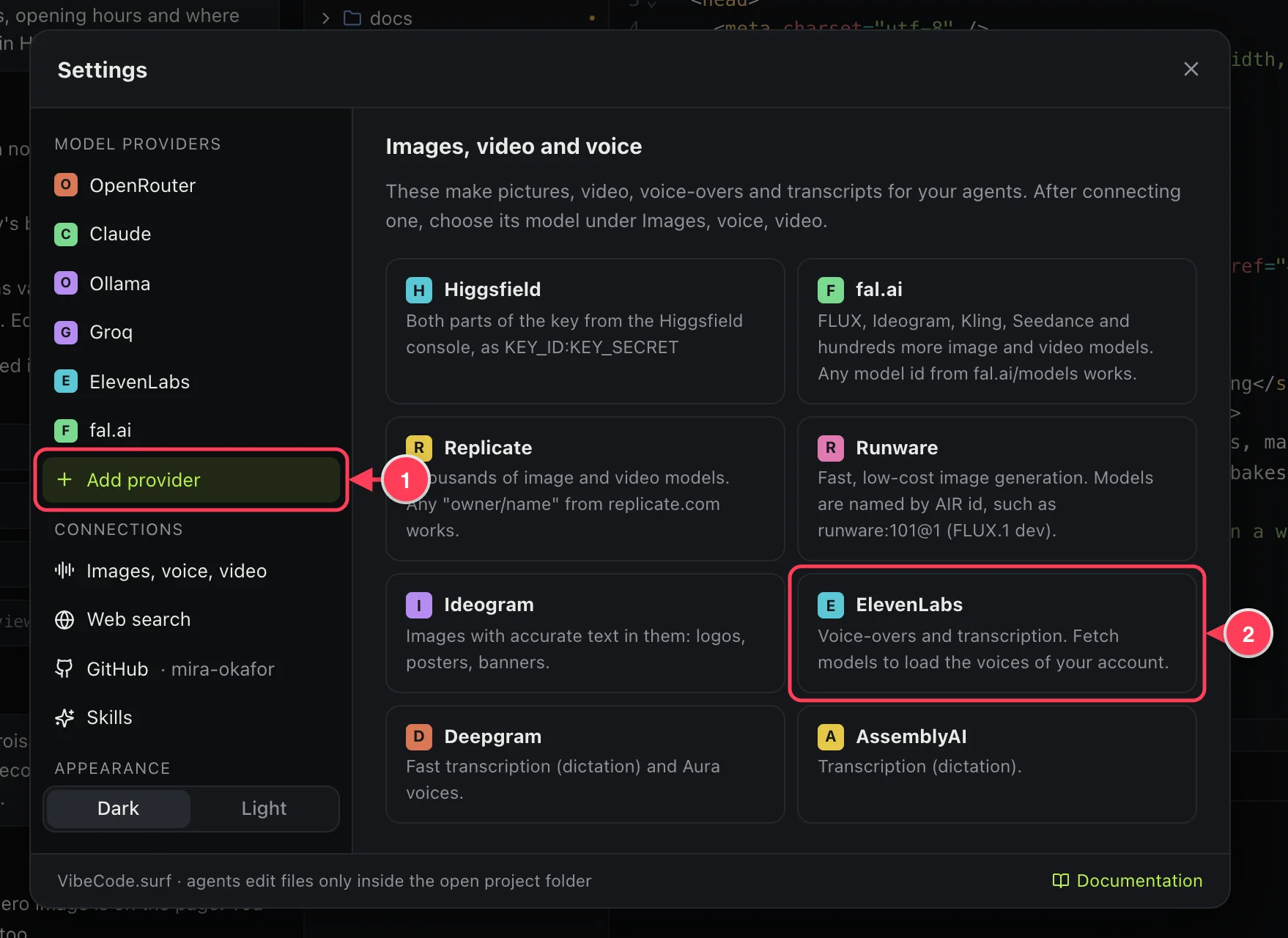
- Add provider.
- Pick a service, for example ElevenLabs for voice.
| Service | Makes | Get a key at |
|---|---|---|
| fal.ai | Images and video (FLUX, Ideogram, Kling, Seedance and more) | fal.ai |
| Replicate | Images and video | replicate.com |
| Runware | Images | runware.ai |
| Ideogram | Images with accurate text: logos, posters, banners | ideogram.ai |
| Higgsfield | Images and video. The key has two parts, entered as KEY_ID:KEY_SECRET | higgsfield.ai |
| ElevenLabs | Voice-overs and transcription | elevenlabs.io |
| Deepgram | Transcription and Aura voices | console.deepgram.com |
| AssemblyAI | Transcription | assemblyai.com |
Step 2: choose a model for each job
- In Settings, open Images, voice, video.
- Click the box under a job and pick a model.
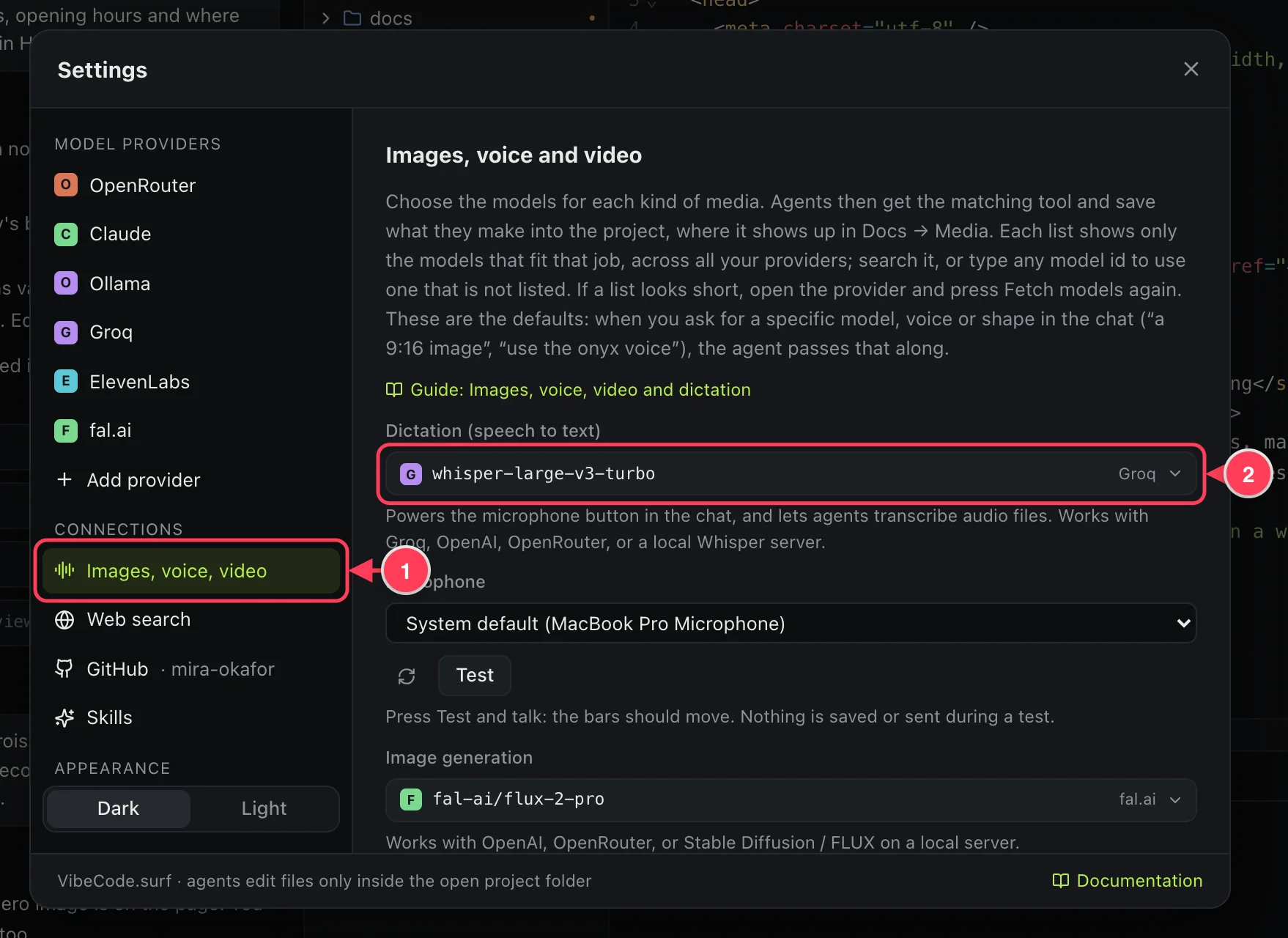
- Images, voice, video.
- The model used for dictation. A job with no model shows Off.
Each list shows only the models that fit that job, from all your providers together.
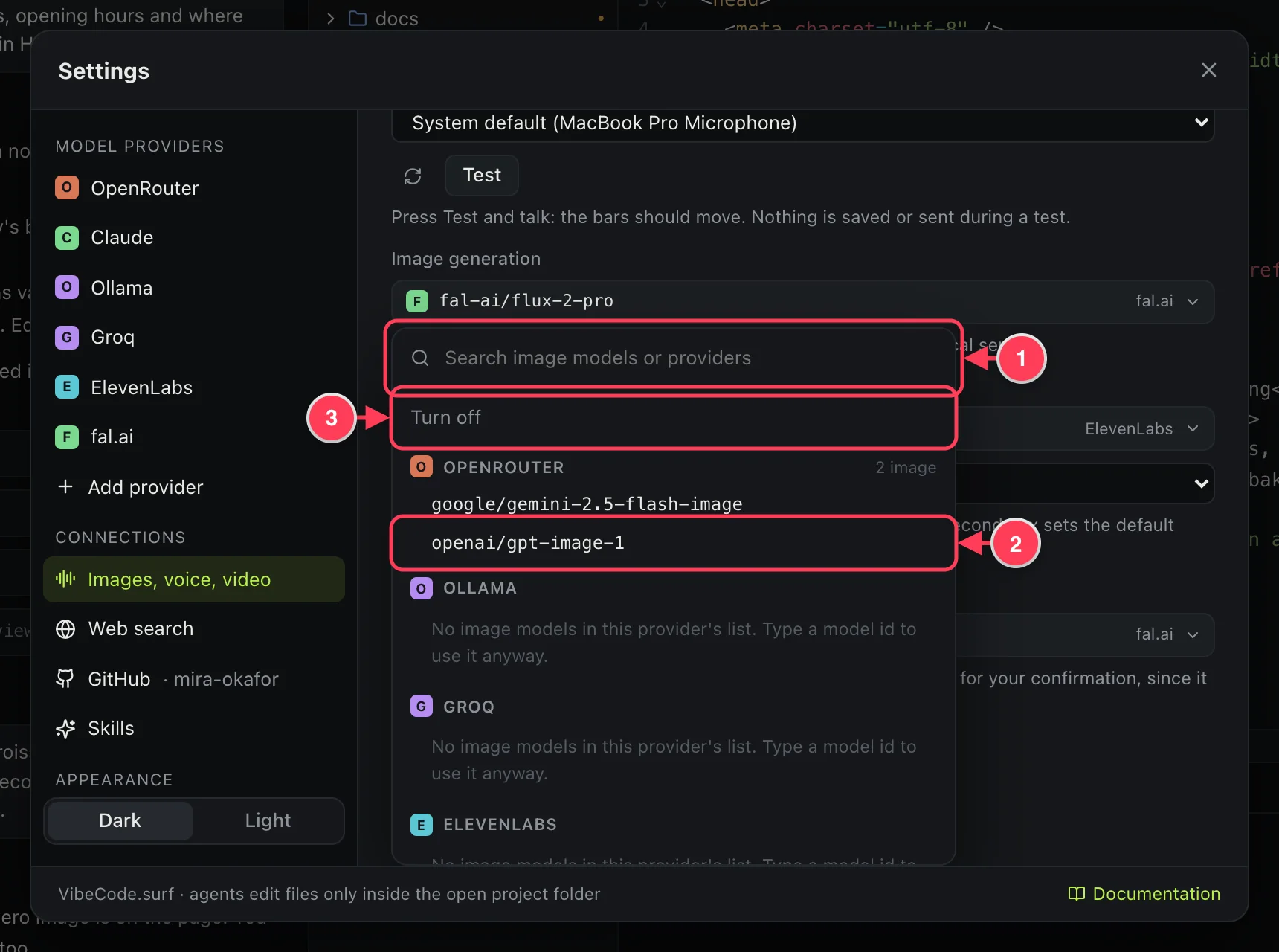
- Search by model or provider. You can also type a model id that is not listed and press Use “…”.
- Click a model to use it.
- Turn off removes the model. Agents then no longer get that tool.
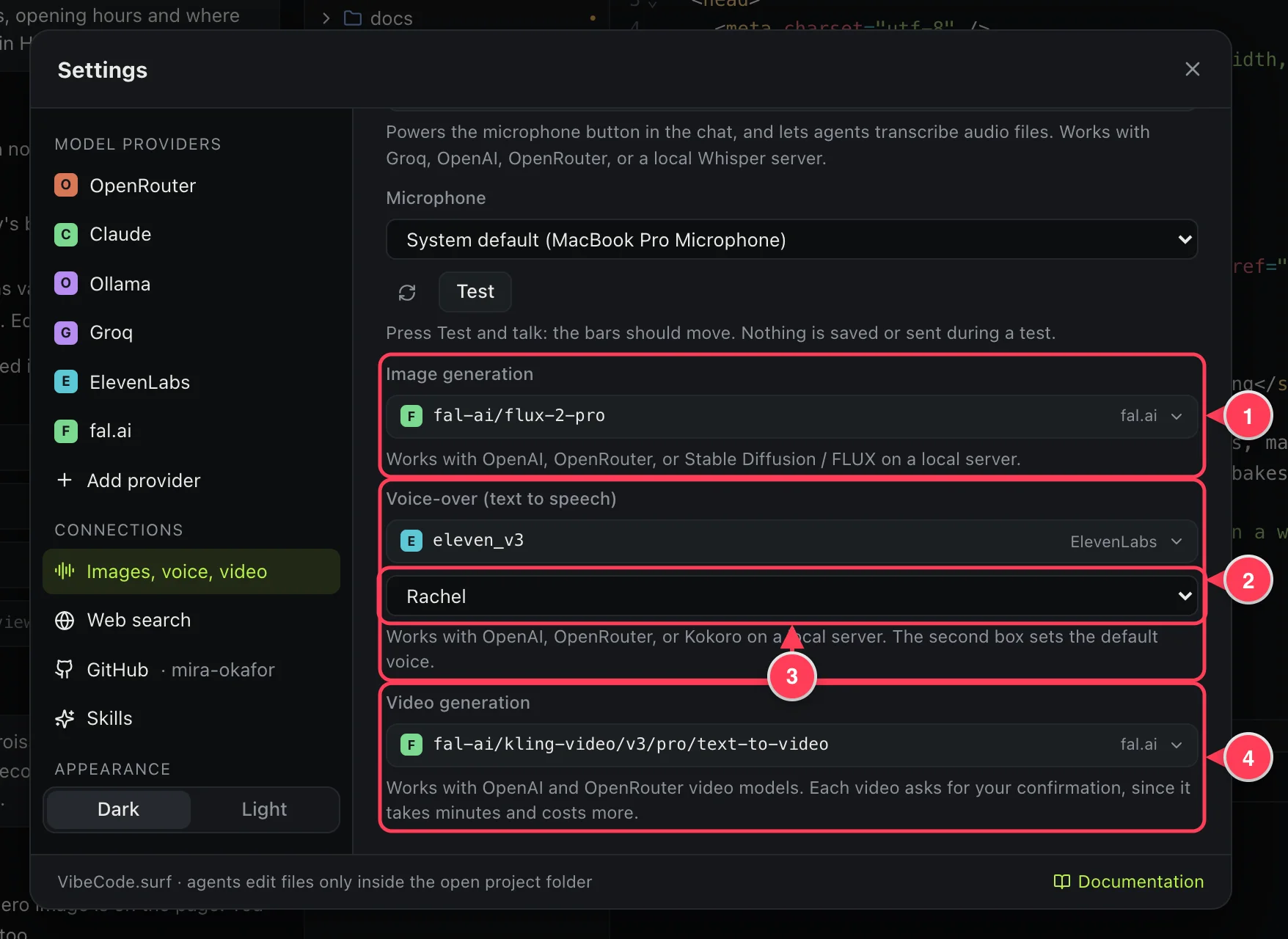
- Image generation.
- Voice-over.
- The default voice. Models that report their voices show a list; others take a voice name that you type.
- Video generation.
If a list looks short, open the provider and press Test and fetch models again. An agent gets a media tool only when a model is set for that job.
Step 3: ask in the chat
Now ask for what you need. Say where it will be used and what it should look or sound like. The agent saves the file in the project and uses it where you asked.
Example requestCreate a hero image: fresh croissants on a wooden table in morning light, 16:9. Then record a short welcome voice-over in a friendly voice.
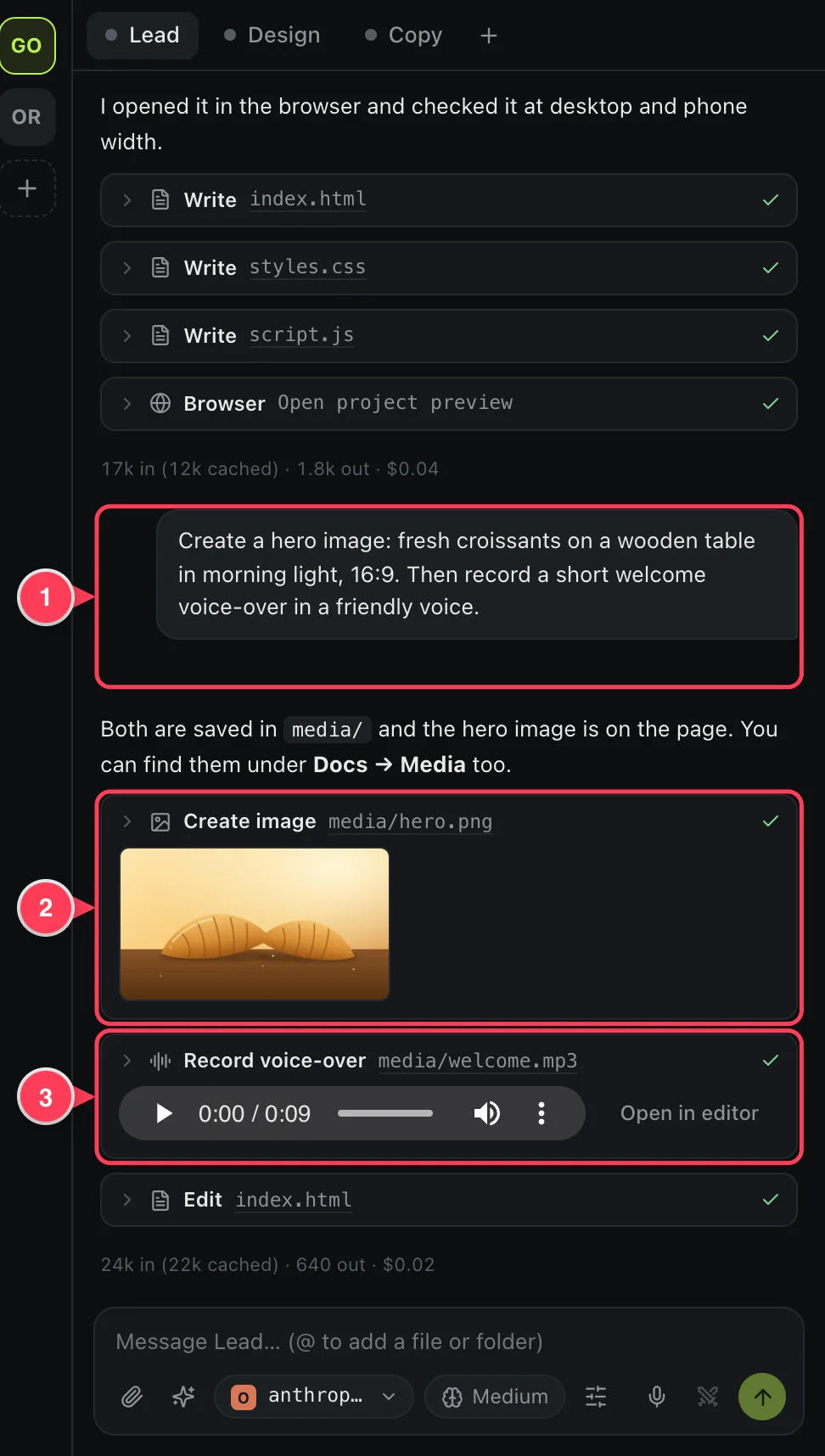
- Your request.
- The image, shown where it was made. Click it to open it.
- The voice-over, with a player.
The models in Settings are the defaults. You can ask for something else in the request, and the agent passes it along:
- Shape: “a 9:16 image”, “a square logo”. Shapes on offer: 1:1, 16:9, 9:16, 4:3, 3:4, 3:2, 2:3.
- Voice: “use the onyx voice”, “a slower, calm voice”.
- Length of a video: “a 5-second clip”. Models commonly offer 4, 8 or 12 seconds.
- Another model: name a model from the same provider.
Video asks first
A video takes a few minutes to render and costs more than an image, so the agent asks before each one.
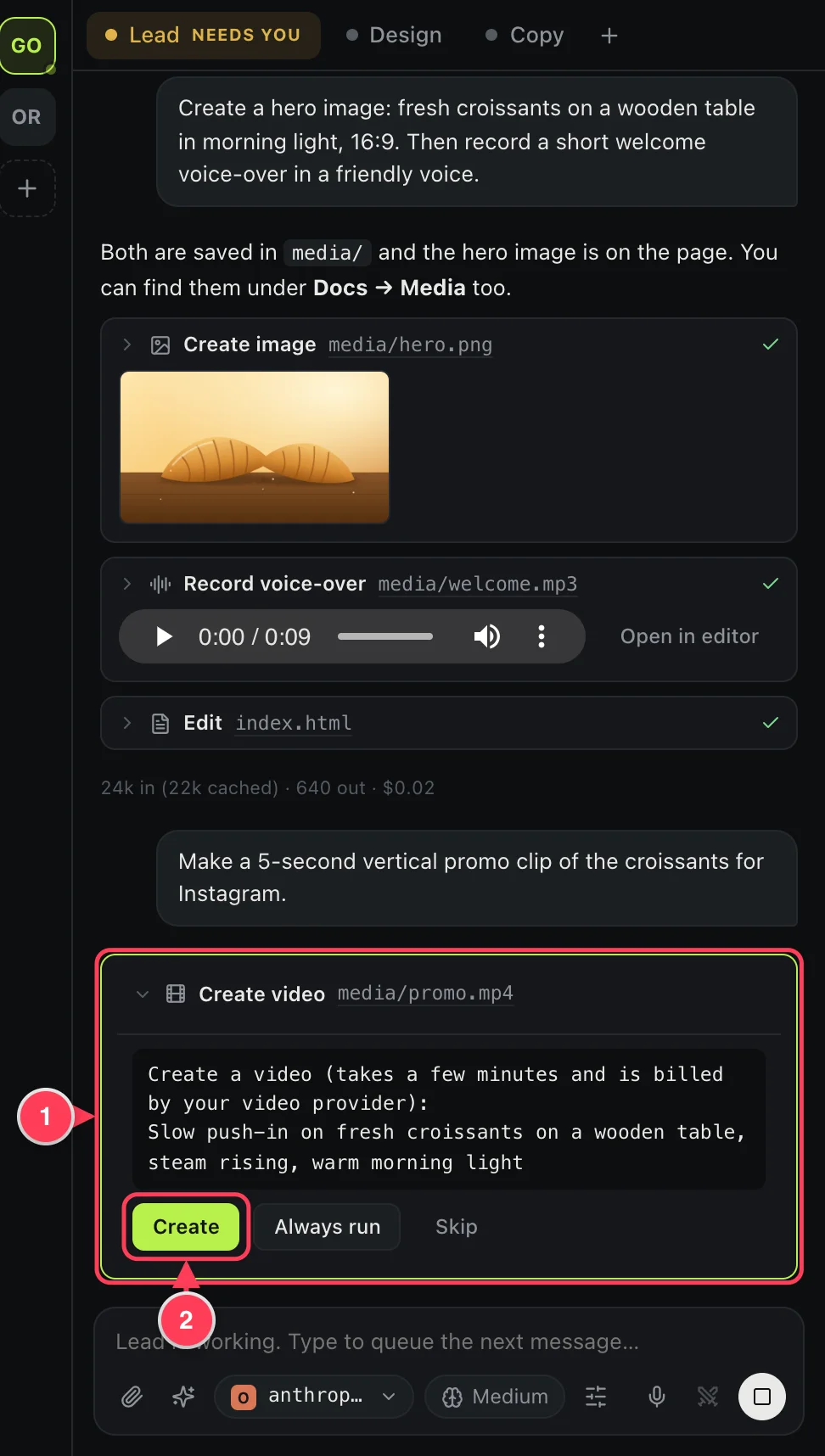
- What will be created.
- Create starts it. Skip tells the agent not to.
Find what was made
Media files are ordinary files in your project. The Docs view lists them under Media, where you can look at pictures and play audio and video.
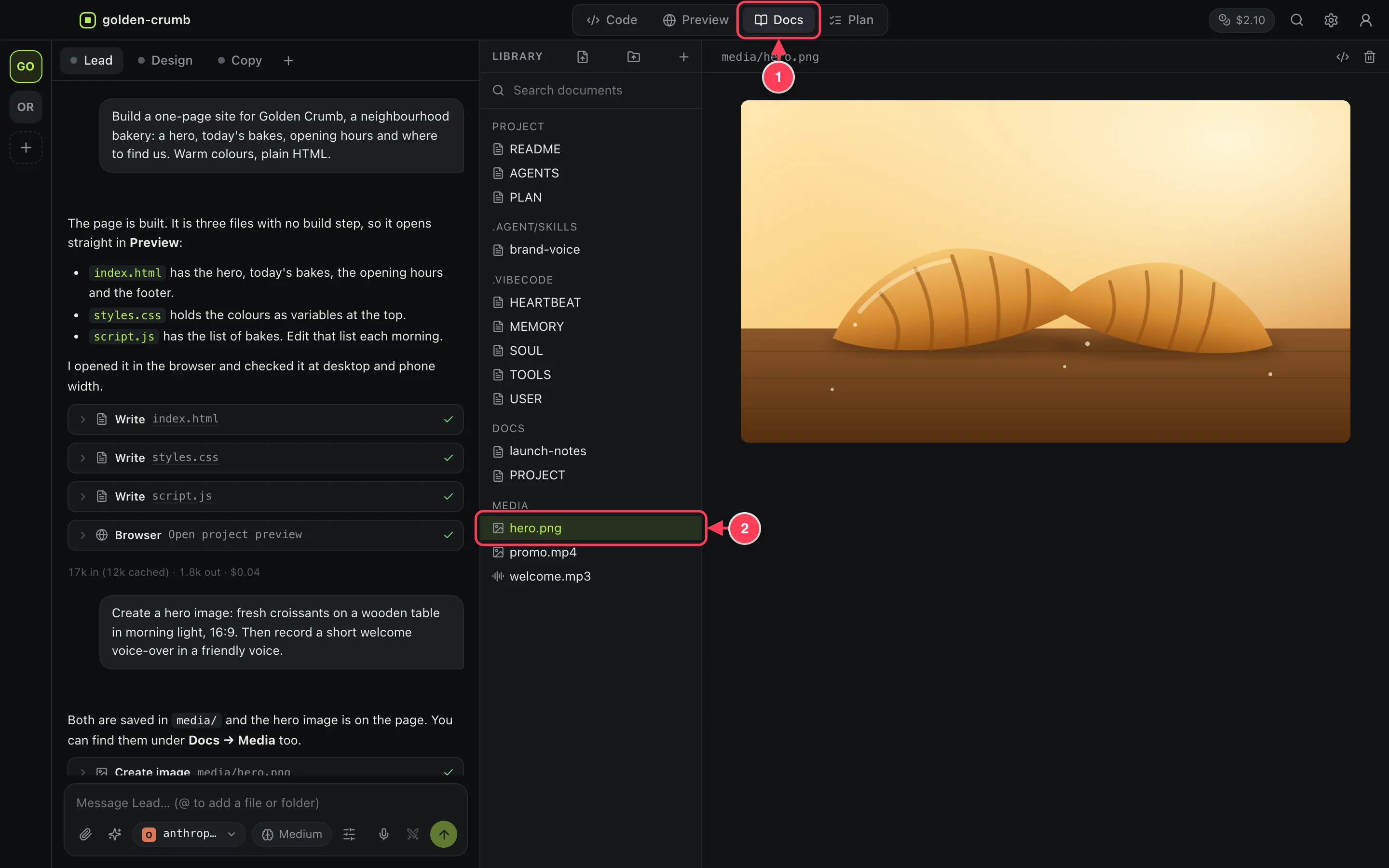
- The Docs view.
- Images, audio and video files in the project.
Dictate your messages
With a dictation model set, you can talk instead of type.
- Click the microphone under the message box. The first time, your system asks for permission to use the microphone.
- Speak.
- Press the red button. Your words appear in the message box. Read them, correct them if needed, and send.
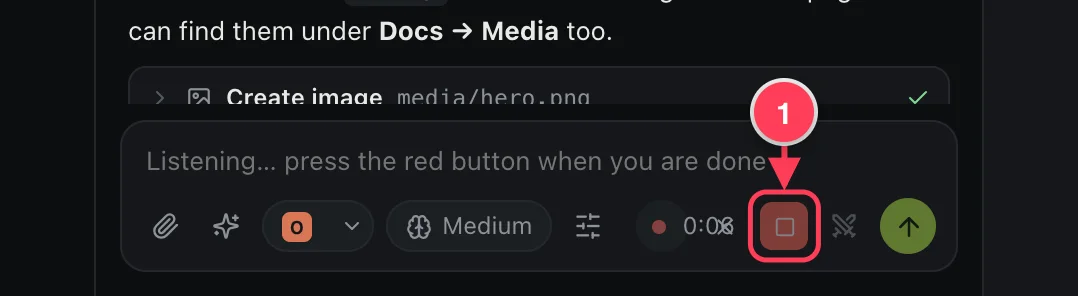
- Press this when you are done. The × next to the timer throws the recording away.
Choose and test the microphone
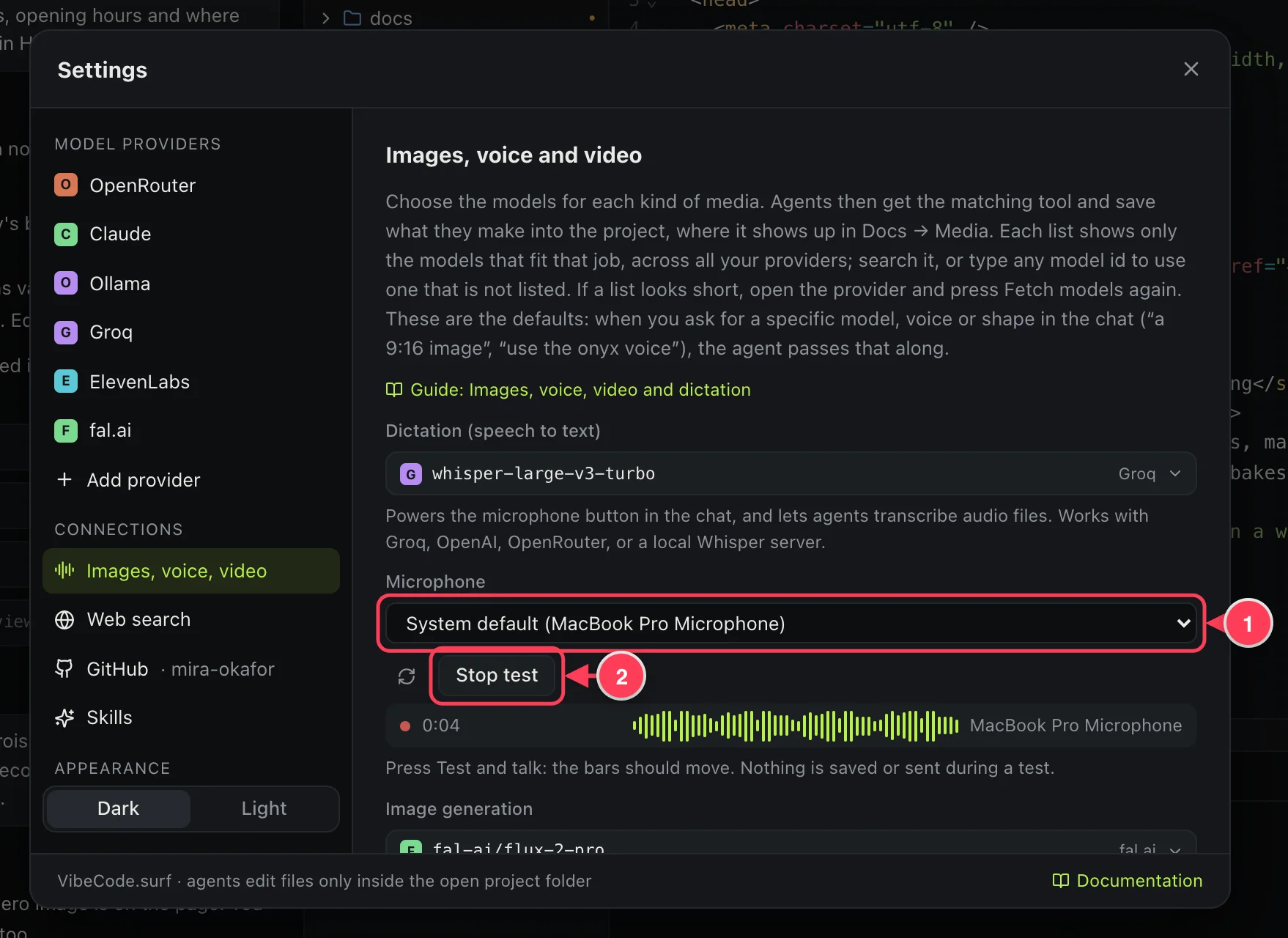
- The microphone dictation listens to.
- Press Test and talk: the bars should move. Nothing is saved or sent during a test.
Transcribe a recording
Put an audio or video file in the project and ask an agent to transcribe it: “Transcribe media/interview.mp3 and write the notes to docs/interview.md”. It works for mp3, wav, m4a, ogg, webm, flac and mp4 files up to 25 MB.
Cost
Media is billed by the media provider, per image, per second of video or per character of speech. The cost chip in the title bar counts chat models only, so media does not show there. Check your provider's dashboard for what you spent.