 VibeCode
Settings
Open Settings with the gear at the top right. The left side lists your providers and the options; the right side shows the page you picked.
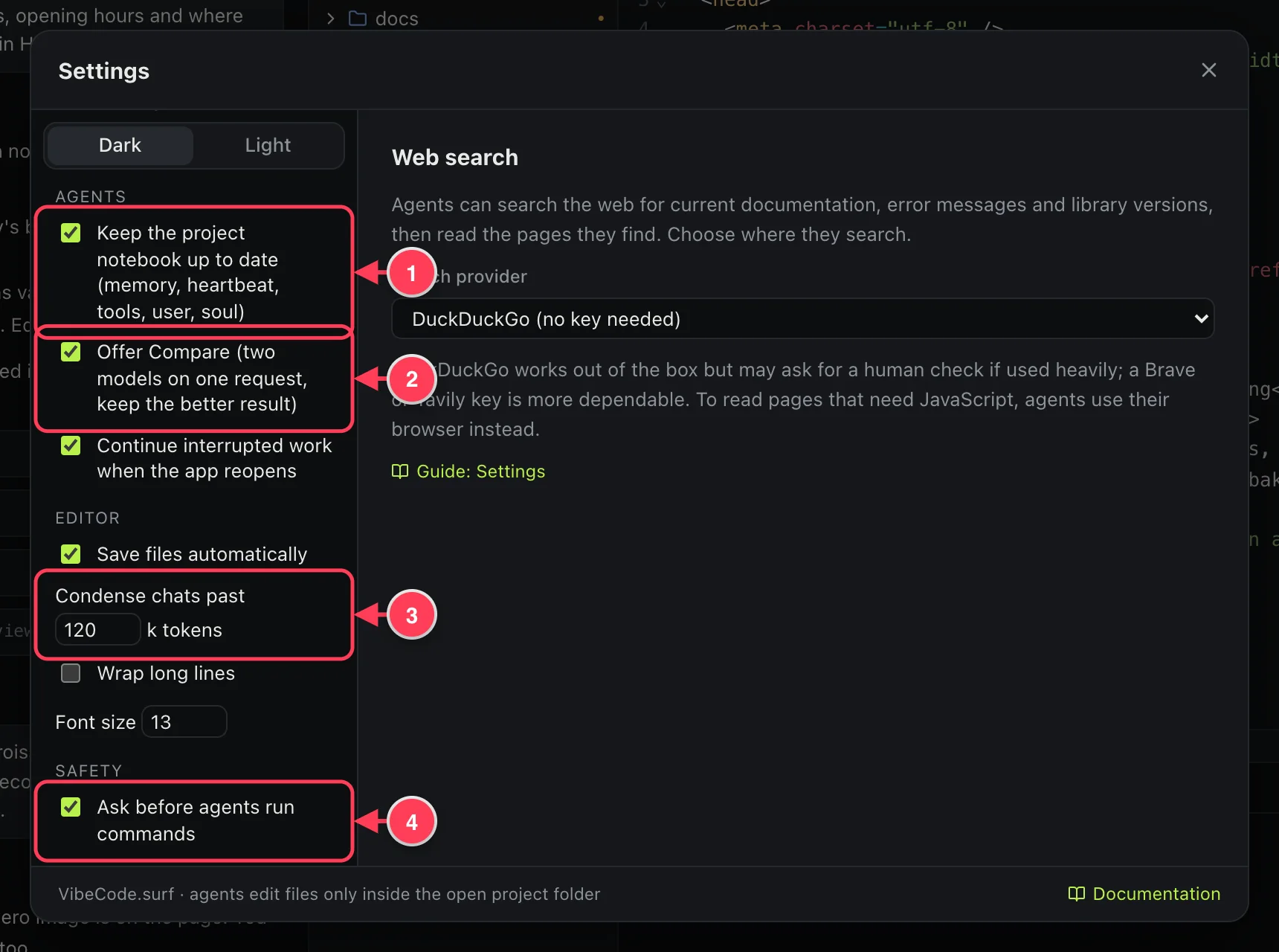
- Keep the project notebook up to date.
- Offer Compare.
- Condense chats past … k tokens.
- Ask before agents run commands.
Model providers
Your connected providers, and Add provider. See Connect a model provider.
Connections
- Images, voice, video: the models for dictation, images, voice-overs and video, and the microphone. See that guide.
- Web search: where agents search the web.
- GitHub: connect with a token. See Work with GitHub.
- Skills: the playbooks agents follow, and importing more. See Project notebook and skills.
Web search
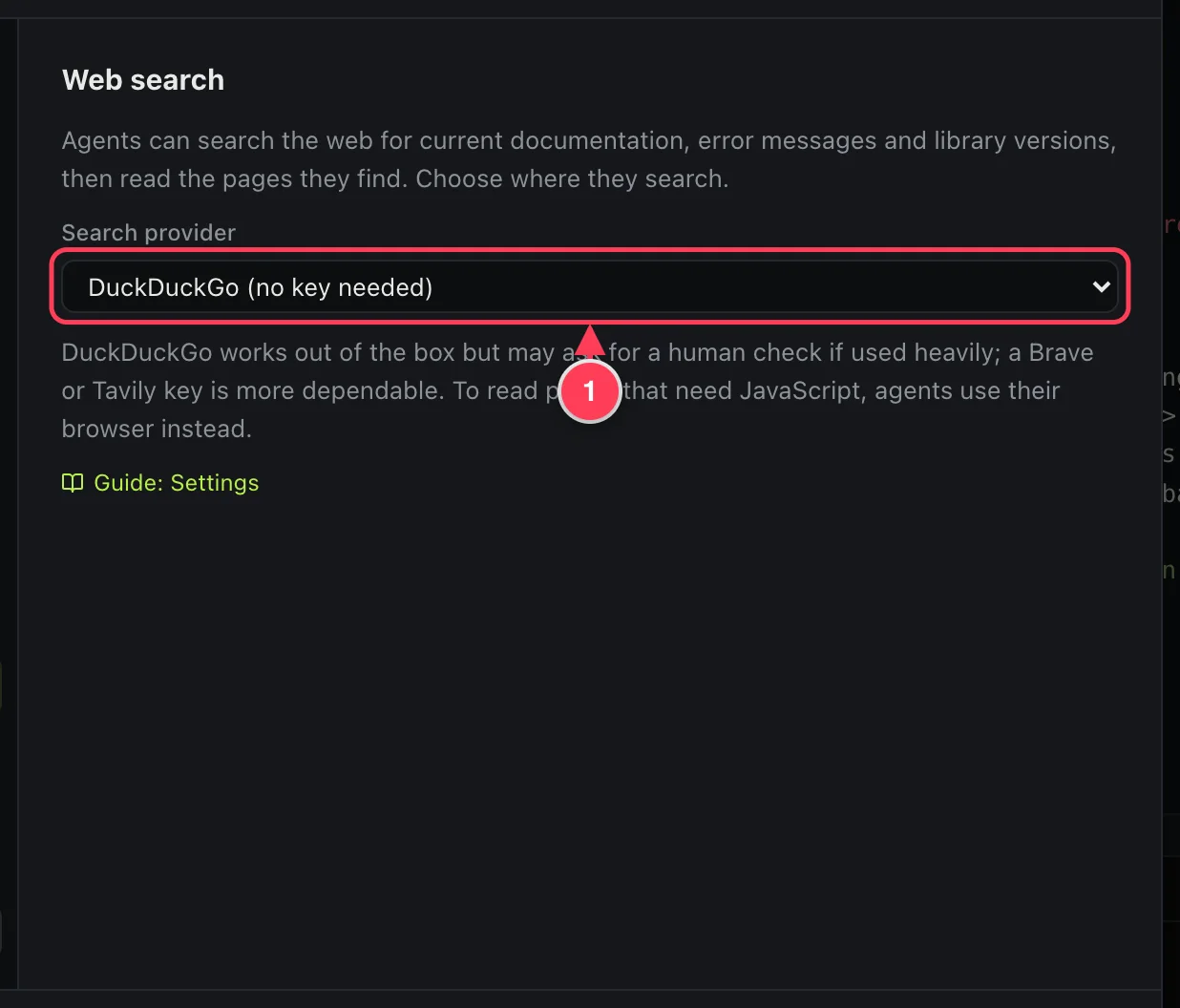
- Where agents search.
DuckDuckGo needs no key and works out of the box, but may ask for a human check if used heavily. Brave Search and Tavily need an API key and are more dependable. Without a key, searches fall back to DuckDuckGo.
Appearance
Dark or Light.
Agents
| Option | What it does |
|---|---|
| Keep the project notebook up to date | After a working turn, a short extra model call updates the notebook files. Off also stops the files from being created. See Project notebook and skills. |
| Offer Compare | Shows the crossed-swords button next to Send. See Compare two models. |
| Continue interrupted work when the app reopens | If the app quits or restarts while an agent is working, the agent carries on by itself next time. Off: you are asked first. |
Editor
| Option | What it does |
|---|---|
| Save files automatically | Saves shortly after you stop typing. |
| Condense chats past … k tokens | A conversation longer than this is replaced by a summary. From 4 to 900; the default is 120. See Usage and cost. |
| Wrap long lines | Long lines wrap in the editor instead of scrolling sideways. |
| Font size | The size of text in the editor, from 10 to 24. |
Safety
Ask before agents run commands: each command waits for you to press Run. Videos ask in the same way. Agents edit files only inside the open project folder, whatever this is set to.
Your account and updates
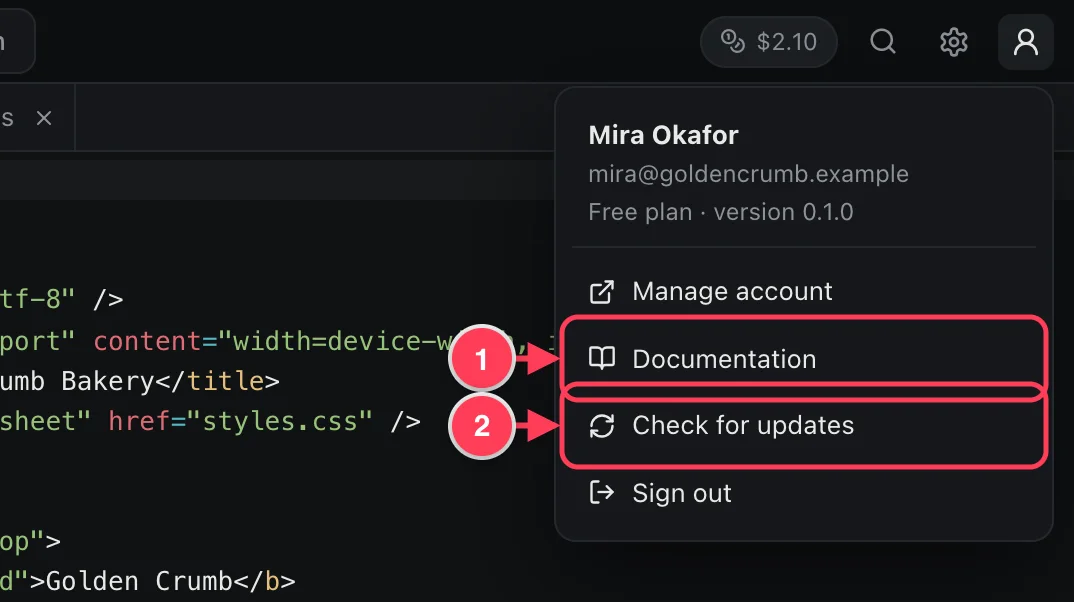
- Documentation opens these pages.
- Check for updates.
Manage account opens your account on the website. When a new version is ready, a red New update available button appears in the title bar. Update and restart installs it; your projects stay as they are.