 VibeCode
Docs and media library
The Docs view is a reading room for your project. It gathers the written documents (Markdown and text files) and the media files in one list, so you do not have to hunt for them in the file tree.
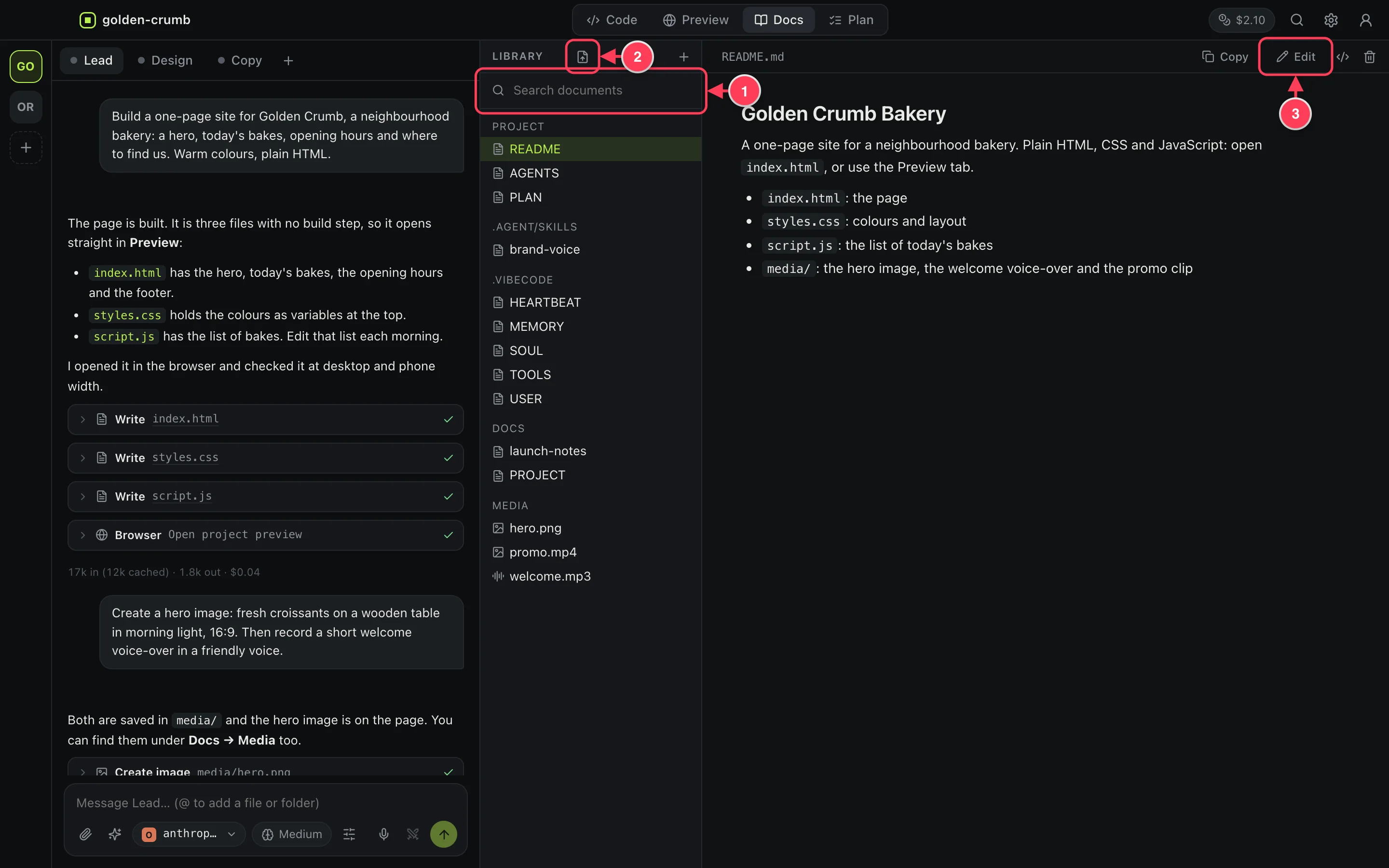
- Search looks inside the documents, not only at their names.
- Click a document to read it.
- Edit lets you change it; Save or ⌘S keeps the change. Copy copies the text.
What is in the list
- Project: the documents at the top of the project, such as README, AGENTS and PLAN.
- One group per folder that holds documents, such as
docs. - Media: images, audio and video anywhere in the project.
Import files or a folder
Bring in material you already have: a brief, notes, a brand guide, pictures, a folder of research. The two buttons at the top of the list copy it into the project's docs folder.
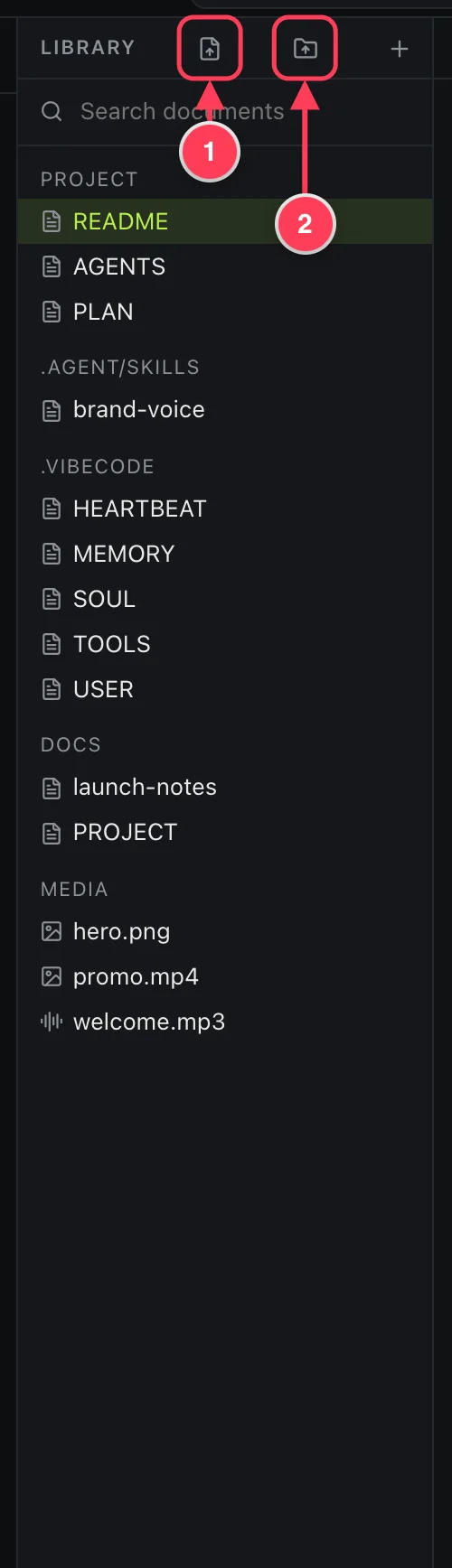
- Import files: choose one or more files.
- Import a folder: the folder is copied with everything in it, keeping its structure.
- The originals stay where they are; the project gets copies.
- Nothing is overwritten. If a name is taken, the copy gets a number:
notes 2.md. - Documents (Markdown and text) and media show up in this list. Other kinds of file are copied too and show in the file tree.
- Files larger than 25 MB are left out, and the app tells you which.
Once imported, agents can read them like any other file. Mention one in the chat with @ to hand it to an agent directly.
Add a document
Press + at the top of the list, type a name and press Enter. The file is created in the docs folder unless you type a folder in front of the name.
Ask an agent to write
Agents write documents like any other file: “Write a short user guide for this app in docs/guide.md”. It appears in the list when it is saved.