 VibeCode
Work with GitHub
Git records versions of your project. GitHub keeps a copy online, so your work is safe and can be shared. The app has buttons for the everyday steps; the terminal and the agents can do the rest.
Connect GitHub
- Open Settings and choose GitHub.
- Press Create a token on GitHub. GitHub opens in your browser with the repo permission already ticked. Create the token and copy it.
- Paste the token into the box.
- Press Connect.
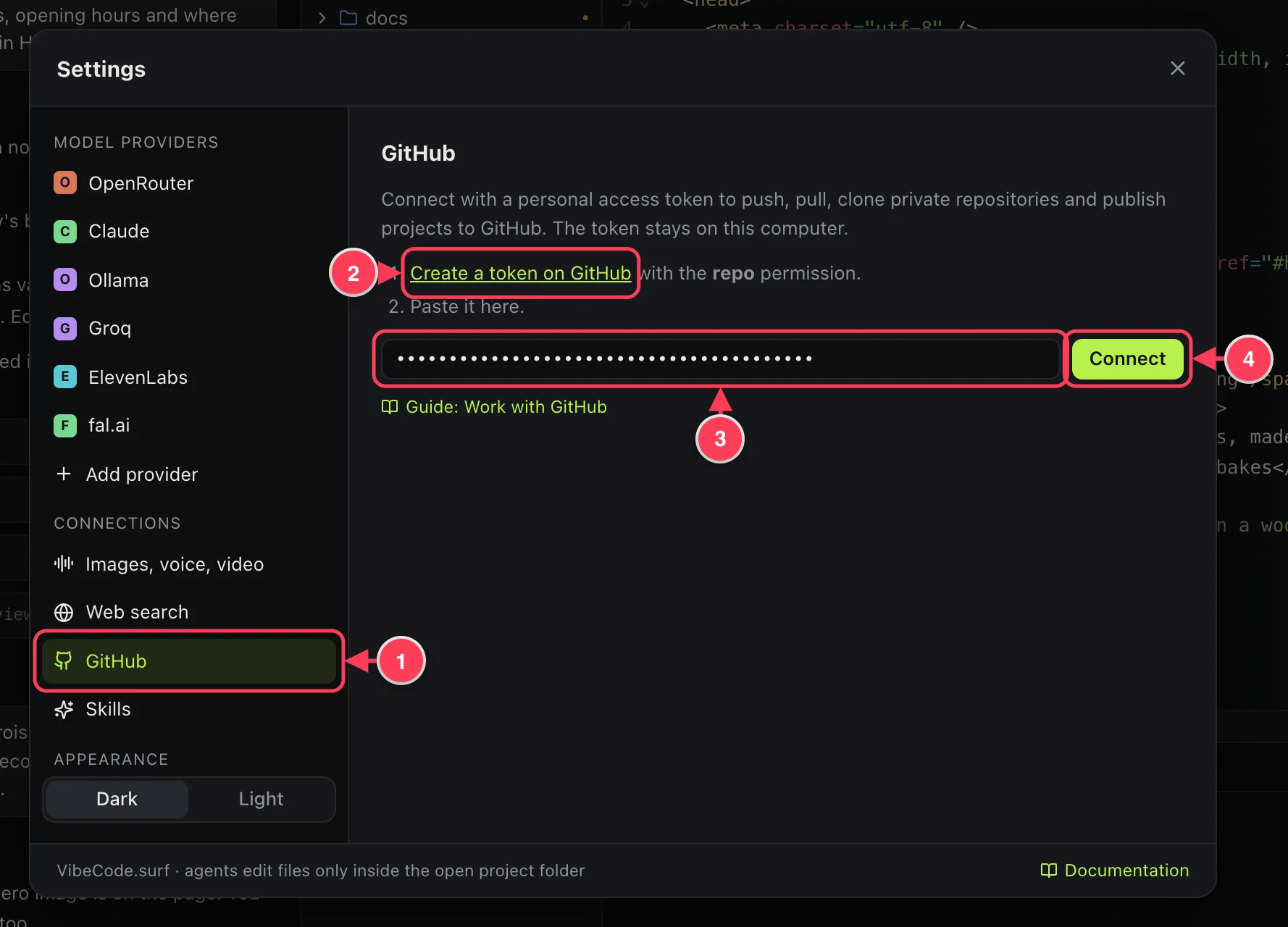
- GitHub.
- Create a token on GitHub.
- Paste the token here.
- Connect.
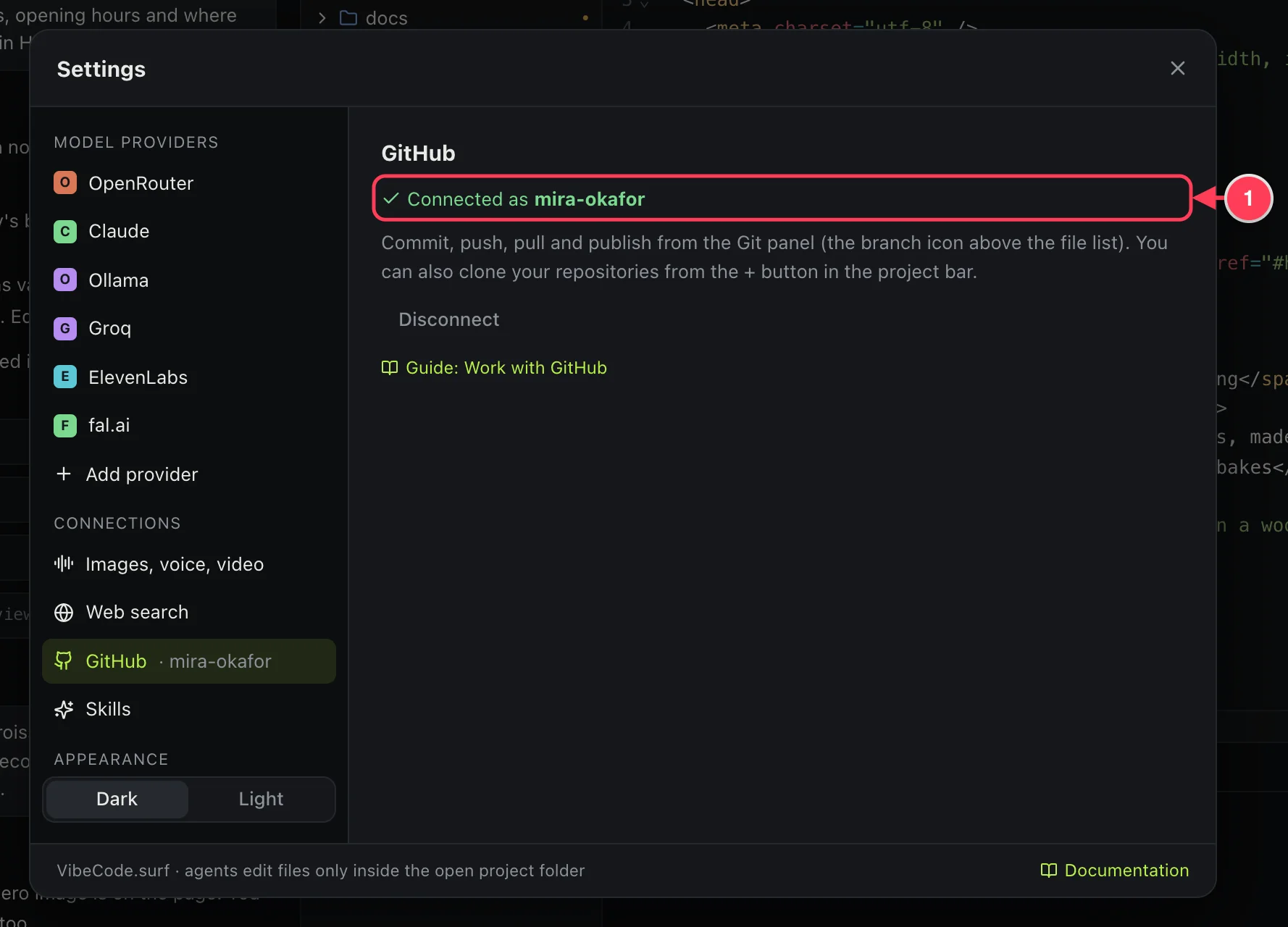
- The account the token belongs to. The token stays on this computer.
You can also create the token yourself at github.com/settings/tokens.
Publish a project
Open the Git panel from the branch icon above the file list. For a project that is not on GitHub yet, the panel offers to create the repository.
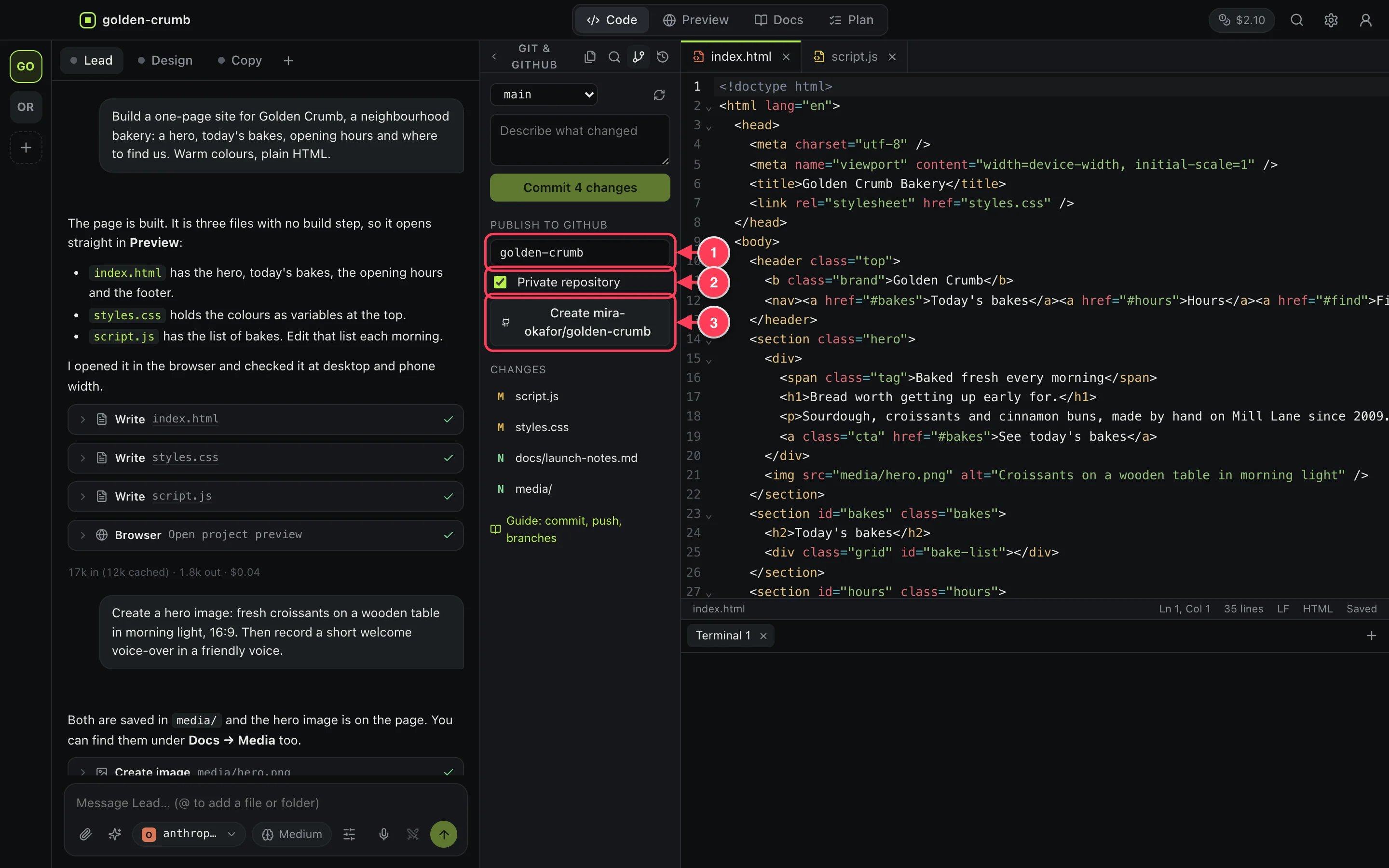
- The name of the new repository.
- Keep Private repository ticked unless you want everyone to see the code.
- Create makes the repository on GitHub and pushes your project to it.
If the project is not tracked with Git at all, the panel first shows a button to start tracking.
Commit and push
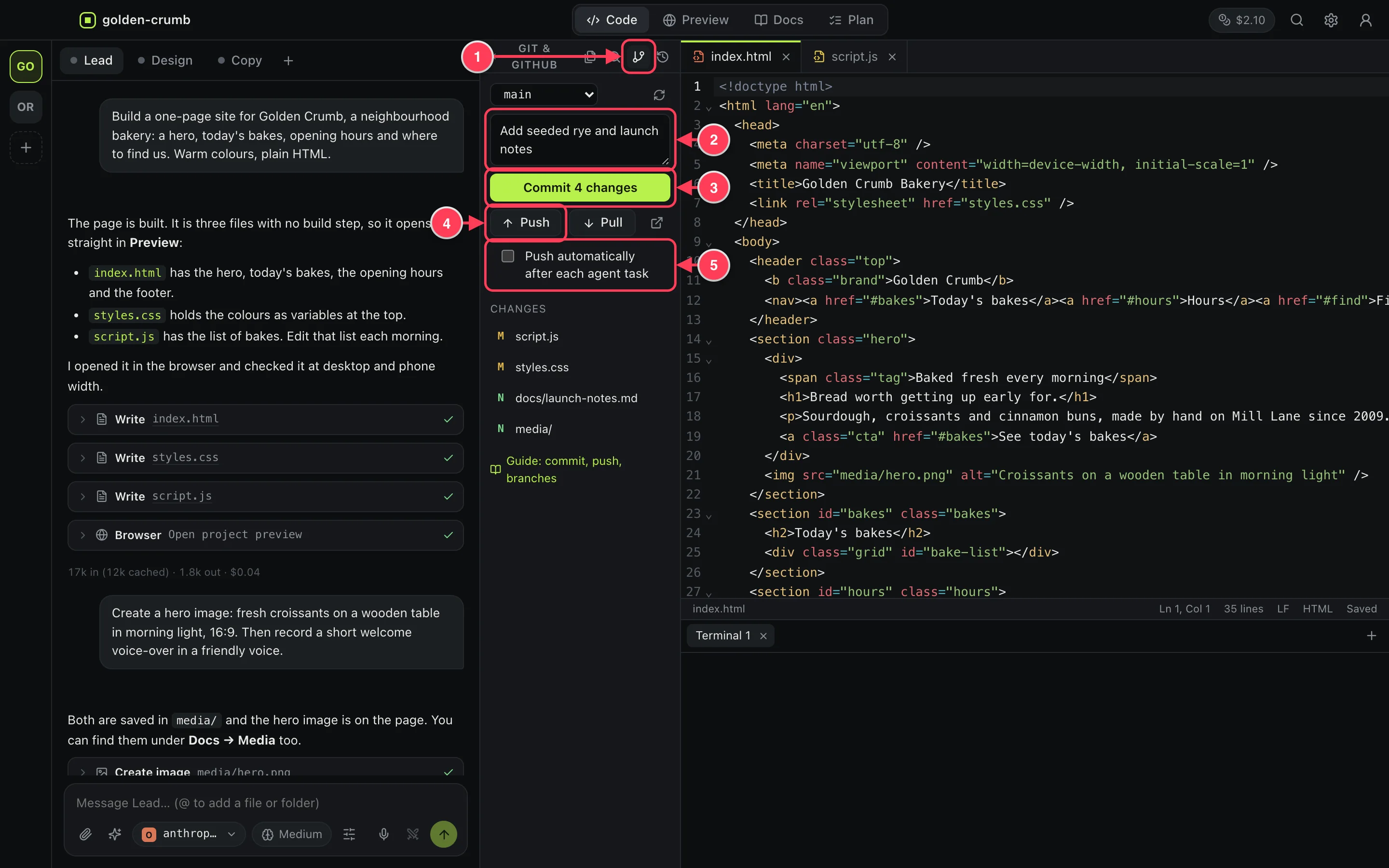
- Git and GitHub.
- Describe what changed.
- Commit saves a version on your computer.
- Push sends your commits to GitHub. Pull fetches what others pushed.
- Push automatically after each agent task.
Under Changes, each file has a letter: N new, M changed, D deleted. Click the small button on a row to see what changed since the last commit.
Push automatically
Tick Push automatically after each agent task and you can stop thinking about it. Each time an agent finishes a task that changed something, the app commits the changes, with the first line of your request as the message, and pushes them.
- It is set per project and is off until you turn it on.
- It skips tasks you stopped, and Compare runs.
- If GitHub refuses the push, for example because someone else pushed first, the app tells you. Press Pull, then push again.
From the terminal
The terminal under the editor is an ordinary shell, and the usual commands work:
git add -A
git commit -m "Add the opening hours"
git push
From the chat
Or ask an agent: “Commit this and push it”. It runs the commands, writes a proper message and tells you the result.
Pushing from the terminal or through an agent uses the Git sign-in already on your computer, not the token in Settings. Only the panel's buttons and automatic push use the token.
Clone a repository
- Click + in the project bar.
- Under Clone from GitHub, type
owner/repoor paste the full address. - Press Clone and choose where to put the folder.
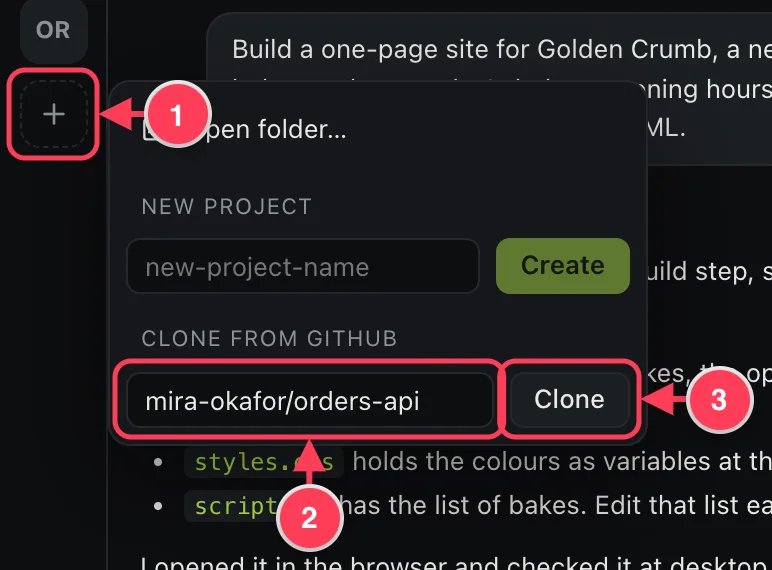
- Add a project.
- The repository, as
owner/repoor a URL. - Clone.
Private repositories need GitHub to be connected.
Branches
A branch is a separate line of work. At the top of the Git panel, the list switches between branches and creates a new one. Create a branch before you try something risky: your main version stays untouched while you experiment.