 VibeCode
Connect a model provider
A provider is a service that runs AI models. You give the app a key for that service, the app asks which models it offers, and you pick one for each agent. You can connect as many providers as you like.
Add a provider with an API key
- Click the gear at the top right to open Settings.

- Settings.
- Under Model providers, press Add provider.
- Pick your provider from the list.
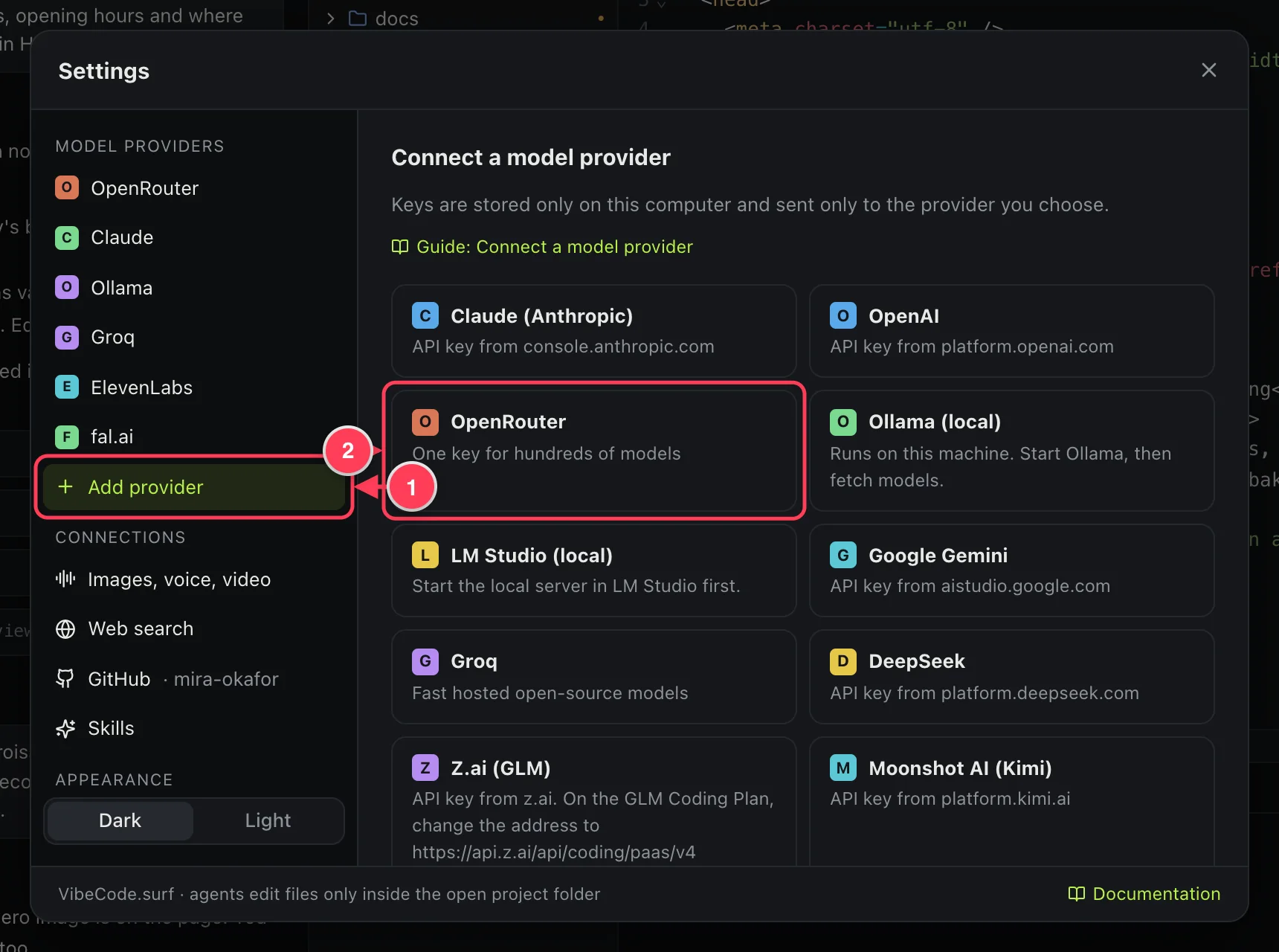
- Add provider.
- Click a provider. OpenRouter is a good first choice: one key reaches hundreds of models.
- Get an API key from the provider (see the table below) and paste it into API key.
- Press Test and fetch models.
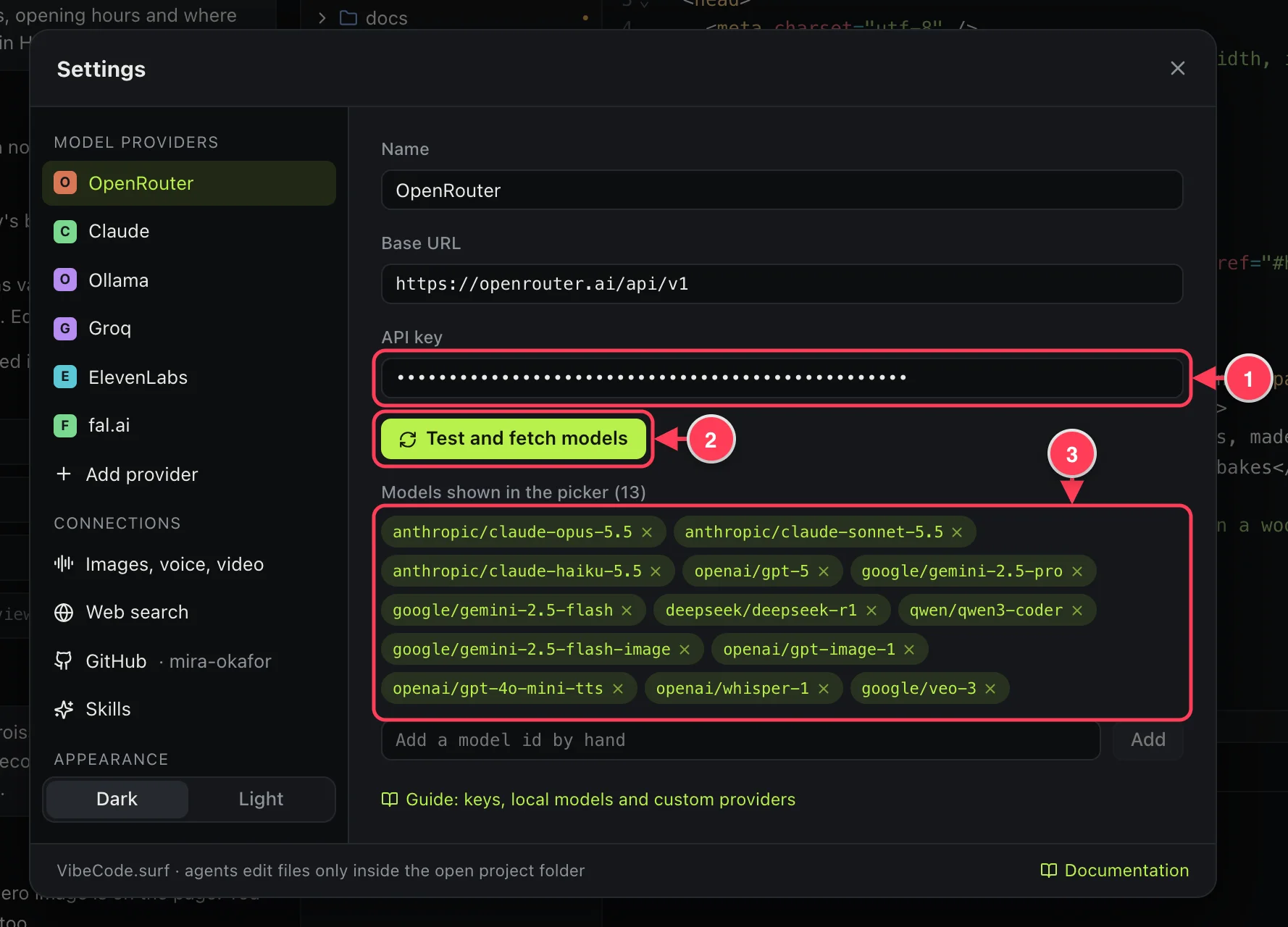
- Paste the key here. It is shown as dots.
- Test and fetch models checks the key and loads the list of models.
- The models that will appear in the picker. Click the × on one to hide it.
When it works, the app says how many models it found:
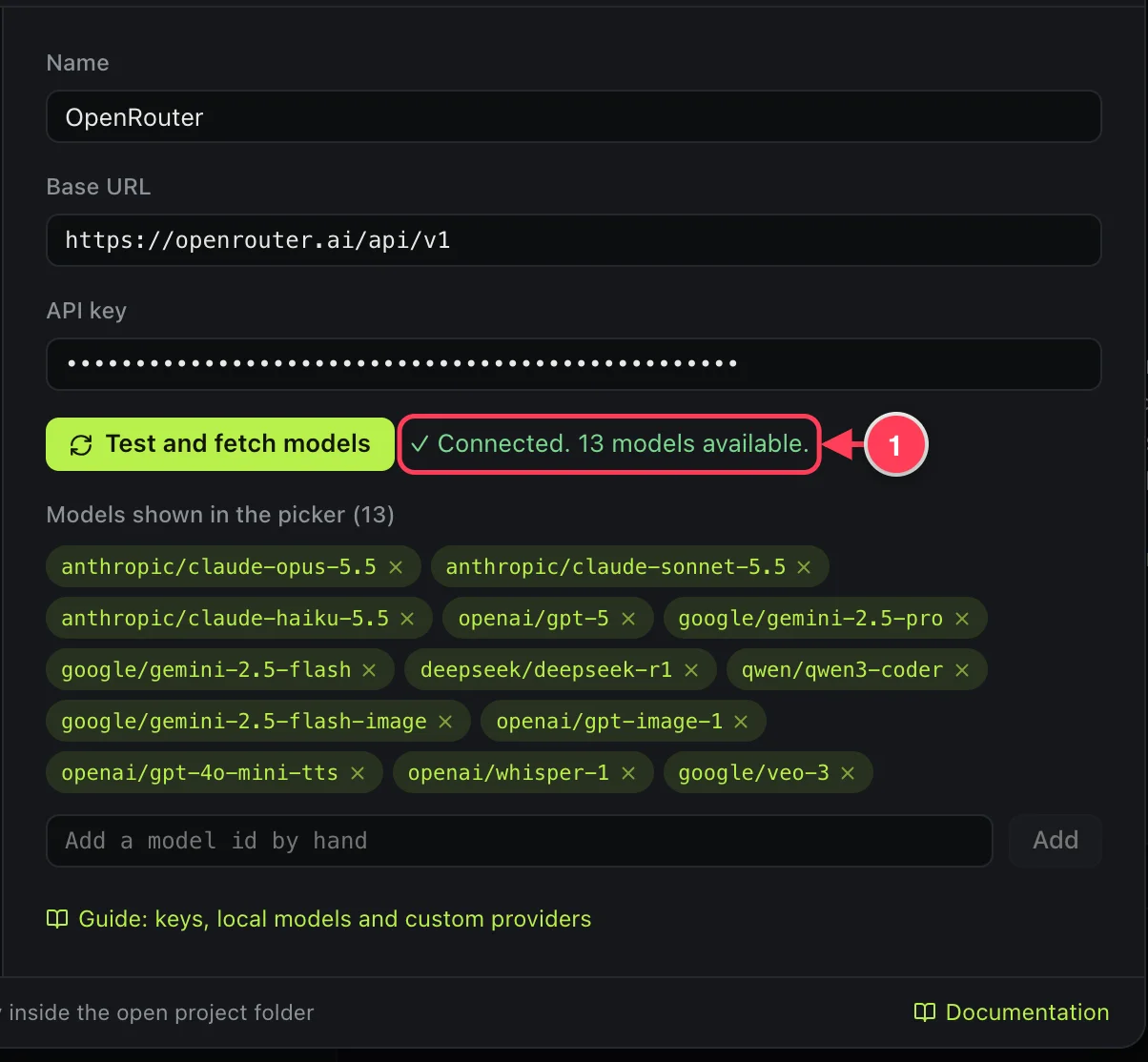
- “Connected. 13 models available.”
Keys are stored only on this computer and sent only to the provider they belong to.
Where to get a key
| Provider | Get a key at | Good to know |
|---|---|---|
| Claude (Anthropic) | console.anthropic.com | Claude models, direct from Anthropic. |
| OpenAI | platform.openai.com | GPT models, plus image, voice and transcription models. |
| OpenRouter | openrouter.ai | One key for models from many companies. |
| Google Gemini | aistudio.google.com | Gemini models. |
| Groq | console.groq.com | Fast hosted open models; also fast transcription. |
| DeepSeek | platform.deepseek.com | |
| Mistral | console.mistral.ai | |
| xAI | console.x.ai | |
| Together AI | together.ai | Open models and FLUX images. |
| Fireworks AI | fireworks.ai | |
| Cerebras | cloud.cerebras.ai | |
| Z.ai (GLM) | z.ai | On the GLM Coding Plan, change the address as the hint in the app says. |
| Moonshot AI (Kimi) | platform.kimi.ai | |
| Qwen (Alibaba Cloud) | Alibaba Cloud Model Studio | Newer accounts use their own address; the hint in the app shows its shape. |
| Cloudflare Workers AI | dash.cloudflare.com | Replace YOUR-ACCOUNT-ID in the address with your account id. |
Each provider bills you directly for what you use. VibeCode.surf adds nothing on top.
Choose a model for an agent
Every agent has its own model. Click the model button under the message box.
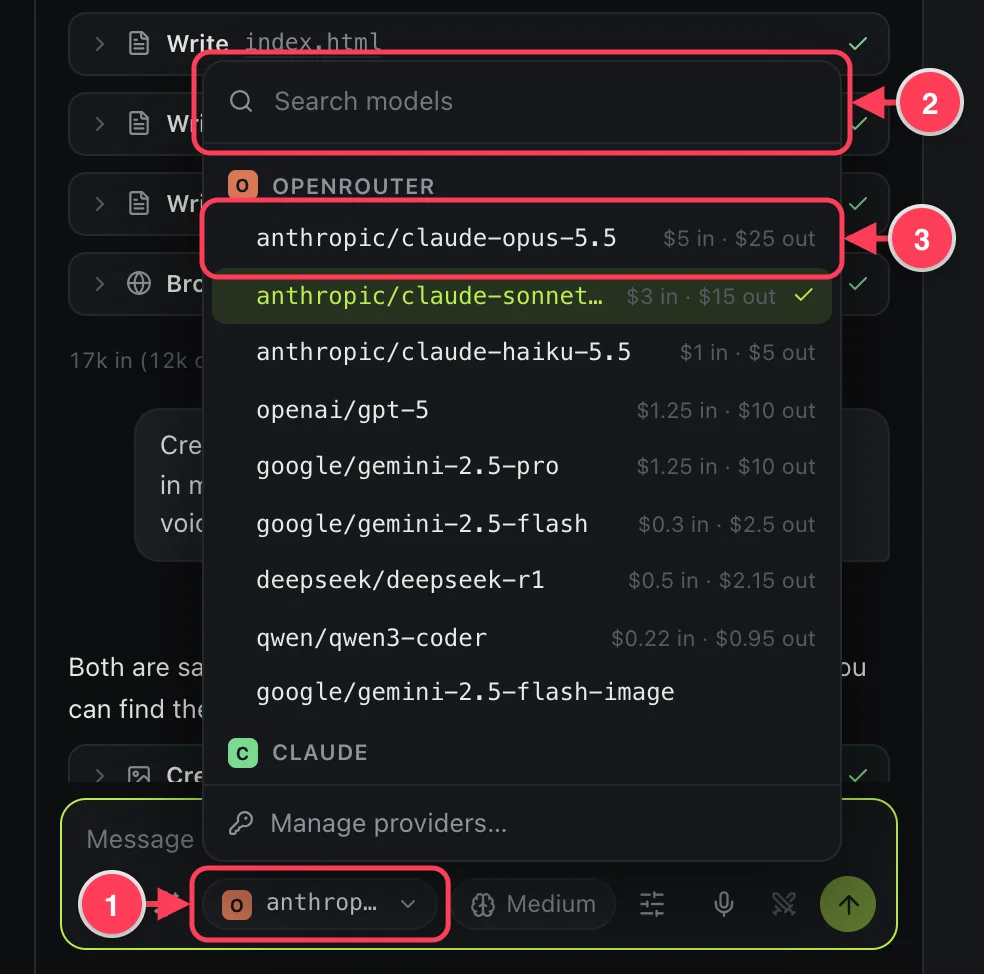
- The model button.
- Search by model or provider name.
- Click a model to use it. The numbers are US dollars per million tokens, in and out.
New agents start on the model of the agent they were opened from.
Use a local model
Local models run on your own computer. They need no key and cost nothing per request. Install Ollama or LM Studio first and download a model there.
- Start Ollama, or start the local server in LM Studio.
- In Settings, press Add provider and choose Ollama (local) or LM Studio (local).
- Leave the key empty and press Test and fetch models.
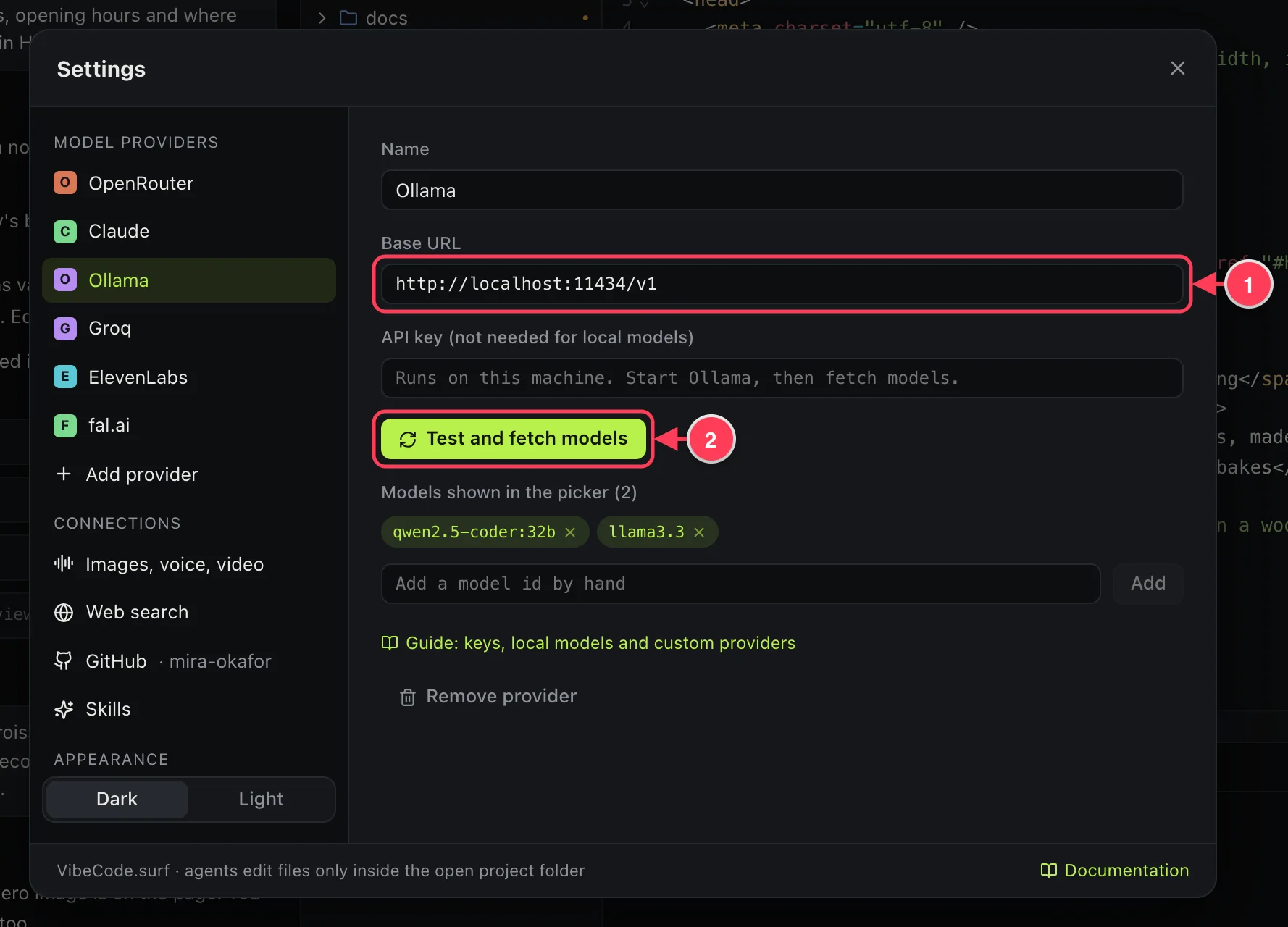
- The address of the local server. Change it only if you moved the server to another port.
- Test and fetch models lists the models you have downloaded.
Local models usually have a smaller memory for the conversation. If a local model loses track, lower Condense chats past in Settings (see Usage and cost).
Add a custom provider
Any server that speaks the OpenAI chat format works: vLLM, llama.cpp, LiteLLM, a company gateway, or a provider that is not on the list.
- Press Add provider and choose Custom (OpenAI-compatible).
- Fill in the form as shown below.
- Press Test and fetch models.
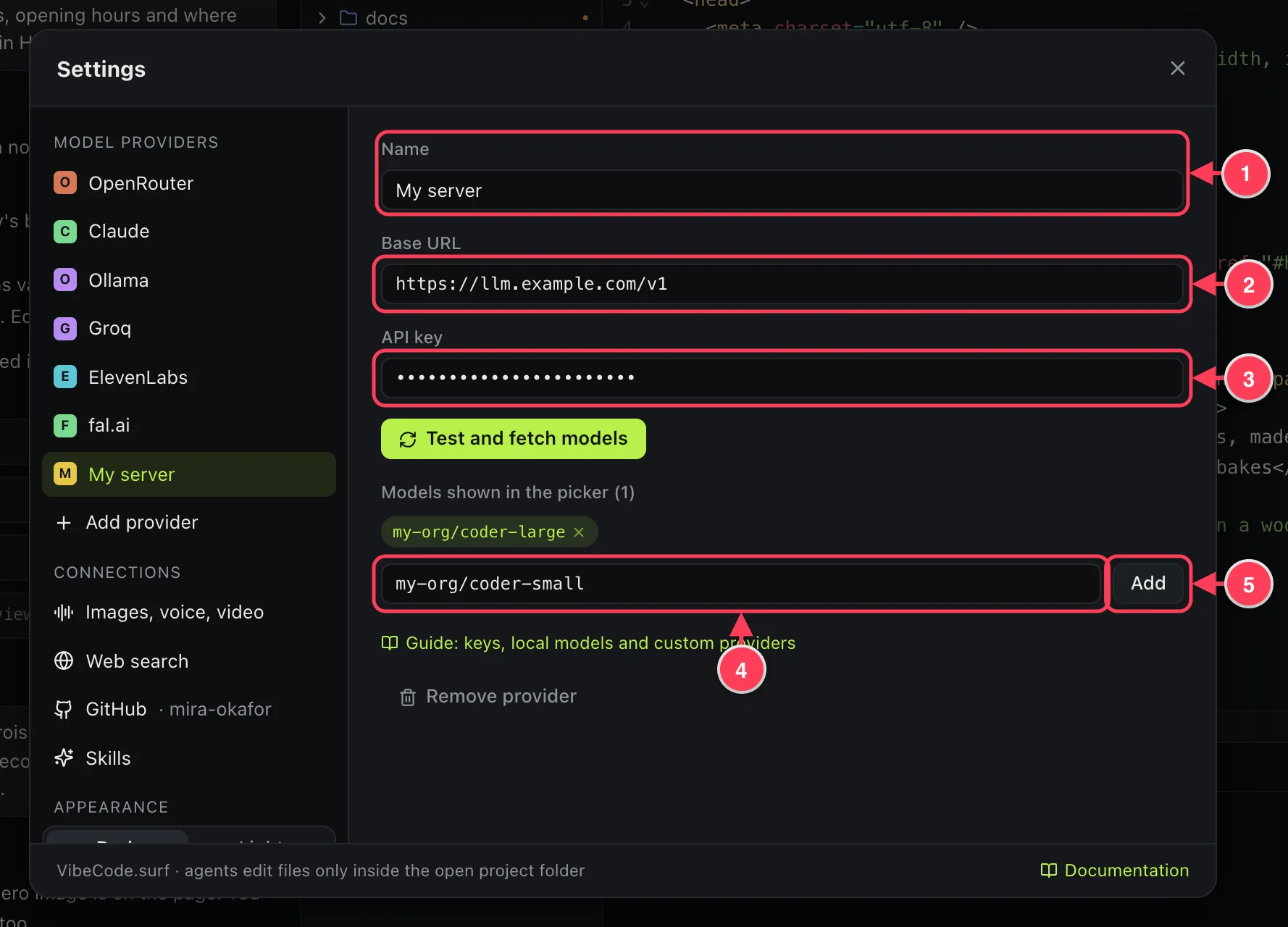
- A name you will recognise.
- The base URL from the provider's documentation. It usually ends in
/v1. - The key, if the server needs one.
- Some servers do not list their models. Type the model id here.
- Press Add. The model appears in the picker.
If it does not connect
| What the app says | What it means | What to do |
|---|---|---|
| The provider refused the API key (401 or 403) | The key is wrong, was deleted, or lacks permission. | Copy the key again. Check that it has no space at the end. |
| A message about credit, quota or billing (402 or 429) | The account has no credit, or you are sending requests too fast. | Add credit at the provider, or wait and try again. |
| Connected, but the provider listed no models | The server has no model list. | Add a model id by hand. |
| Could not connect | The address is wrong, or a local server is not running. | Check the base URL. For a local model, start Ollama or LM Studio. |
For image, voice and video services, see Images, voice, video and dictation.