 VibeCode
Work with agents
An agent is a model that can act: it reads your files, changes them, runs commands and looks at the result, until the job is done. A project can have several agents, each with its own chat, model and role.
Add an agent
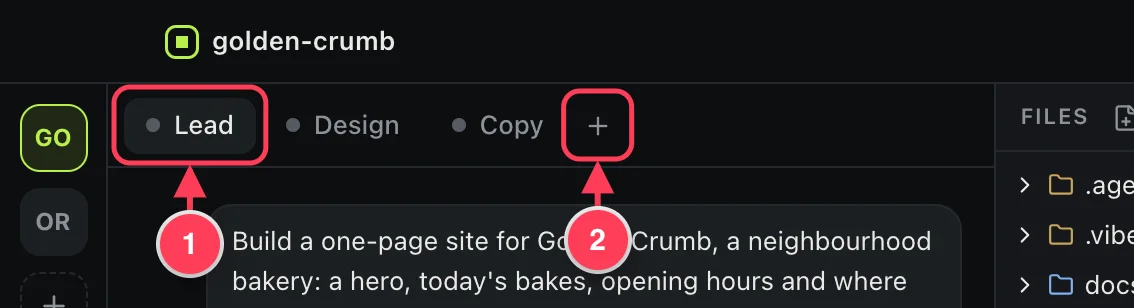
- The agent you are talking to.
- + adds an agent to this project.
You can also ask an agent to do it: “Add an agent for the API and one for the tests”. A lead agent can hand parts of a job to helpers. Helpers show a small arrow in their tab.
Name it and give it a role
Click the sliders button under the message box.
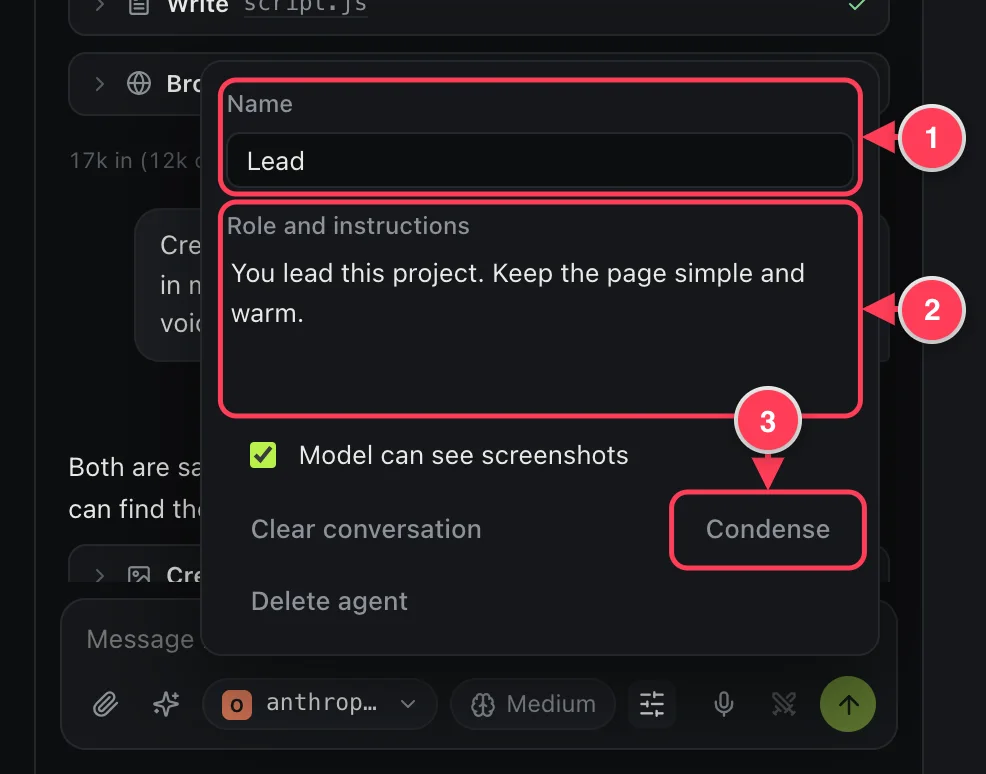
- The name on the tab.
- Standing instructions for this agent, for example “You own the backend in /api. Write tests for everything you change.”
- Condense replaces the conversation with a summary to free up room. Clear conversation starts over. Delete agent removes the tab.
Turn off Model can see screenshots for a model that cannot read images.
Choose how hard it thinks
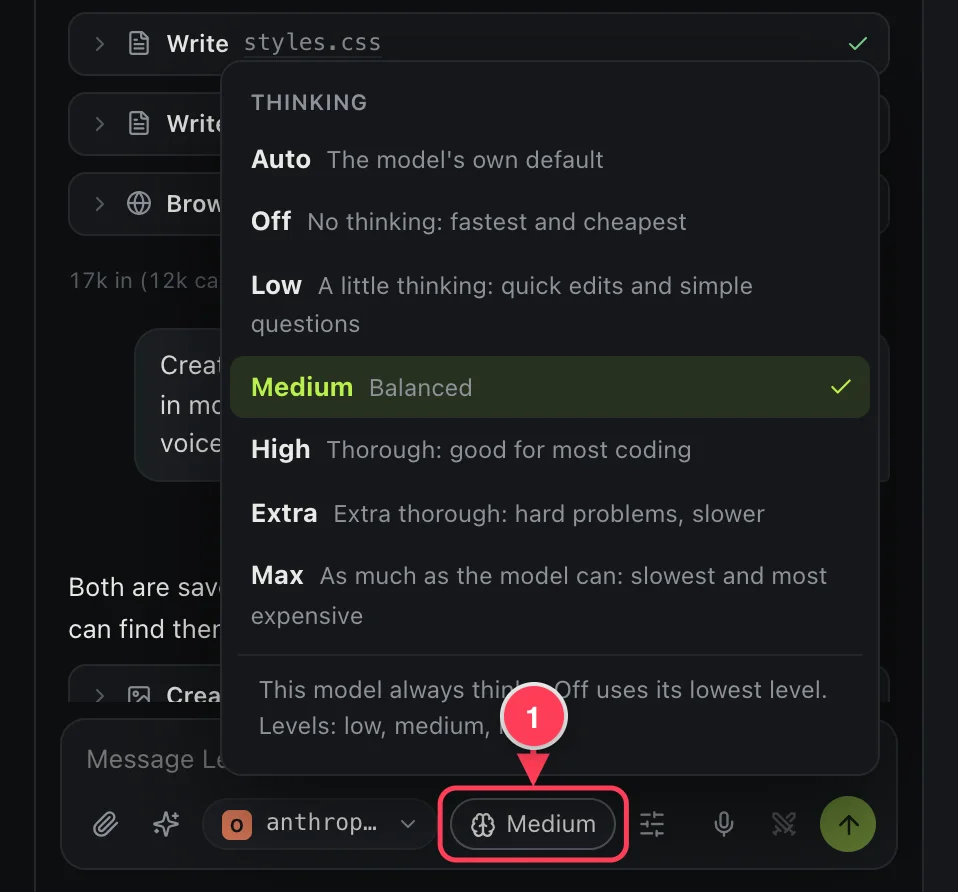
- The thinking level of this agent.
More thinking gives better answers on hard problems and costs more time and money. Auto leaves it to the model. Levels the model does not support are greyed out.
Start from a ready-made task
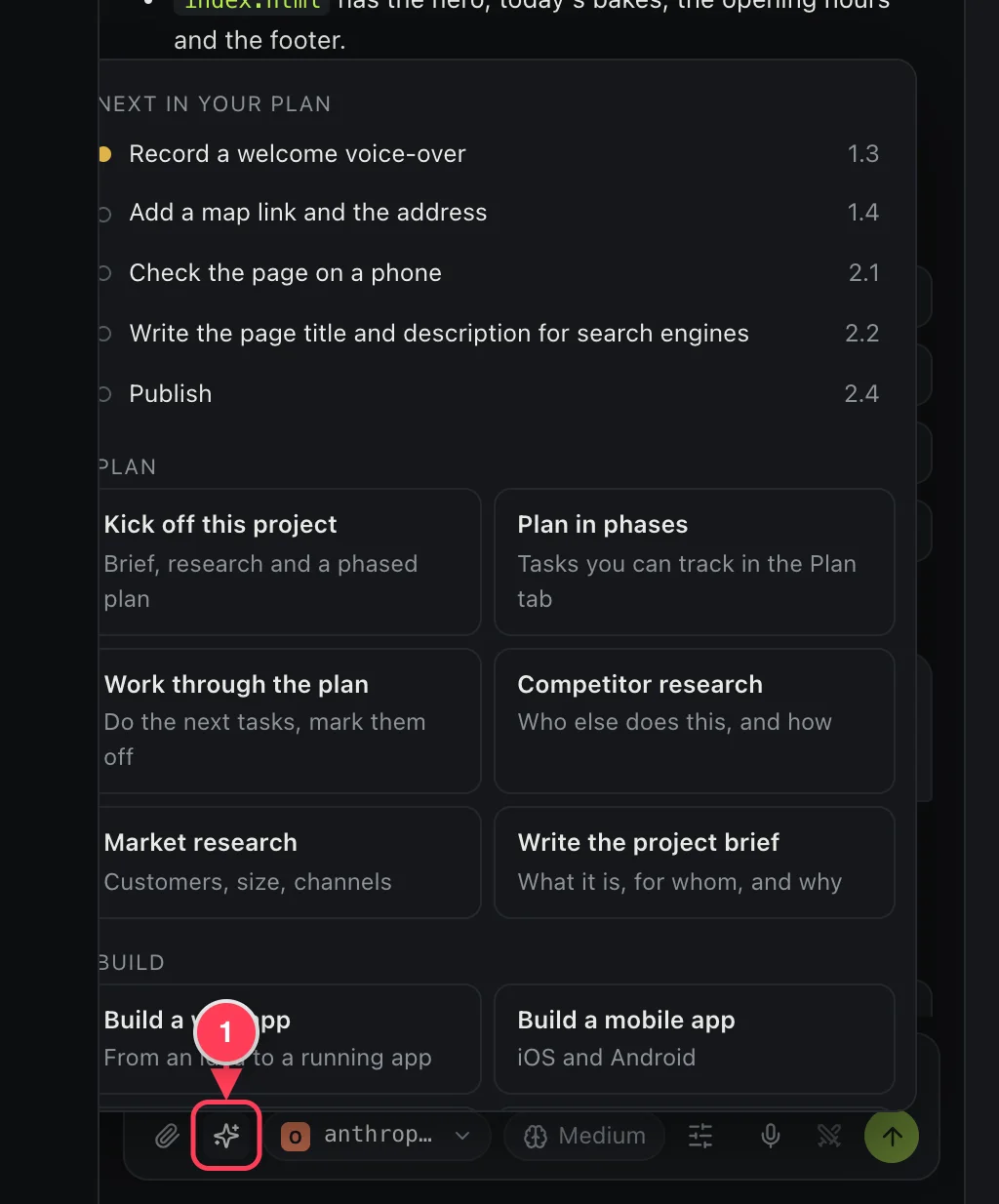
- Tasks. Picking one fills the message box; you can edit it before you send.
The menu starts with the next tasks from your plan, then lists tasks to plan, build, improve, create and ship.
Point at a file or folder with @
Type @ in the message box and start typing a name. Pick a file or folder from the list with the arrow keys and Enter, or with the mouse.
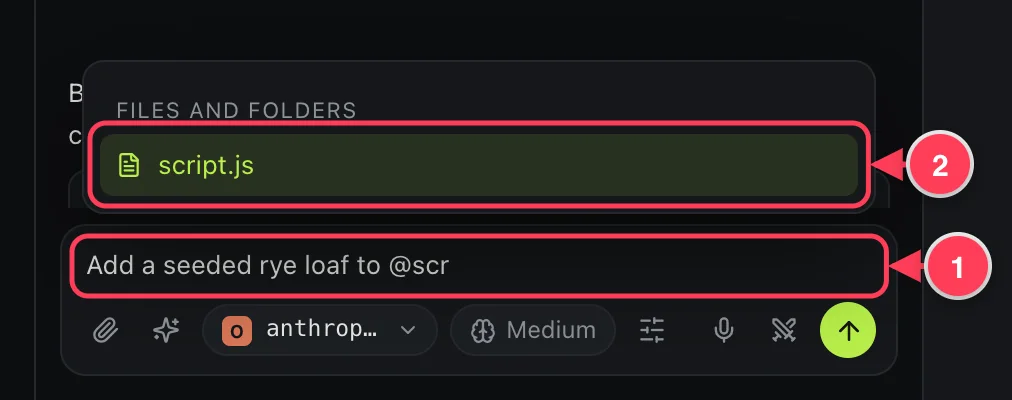
- Type @ and part of the name.
- Press Enter to pick the highlighted file or folder.
The path goes into your message, and the agent is handed the thing itself: the content of a file, or the list of files in a folder. It can start working without searching for it, which is faster and costs fewer tokens. Images and PDFs work too. A file that is too large to attach is still named in the message, and the agent opens it when it needs to.
Example requestAdd a seeded rye loaf to @script.js and mention it in @README.md
Attach files
Click the paperclip, drag files into the chat, or paste an image. Up to 8 attachments per message. Pictures and screenshots of any common format: a large one is made smaller for you, and formats such as BMP, SVG or TIFF are converted. PDFs up to 12 MB. Word, Excel and PowerPoint files (.docx, .xlsx, .pptx): the agent gets their text. Any text or code file: a very long one is cut after 300 KB. Sound and video cannot be attached; put them in the project and ask the agent to work on them.
Keep typing while it works
You do not have to wait. A message you send while the agent is busy reaches it at its next step, in the middle of the work: ask "how is it going?" and it tells you what is done, what is running and what is left, then carries on. If it is waiting on something slow (a build, a render), your message ends the wait at once. Until it is read, the message shows in a small list above the box.
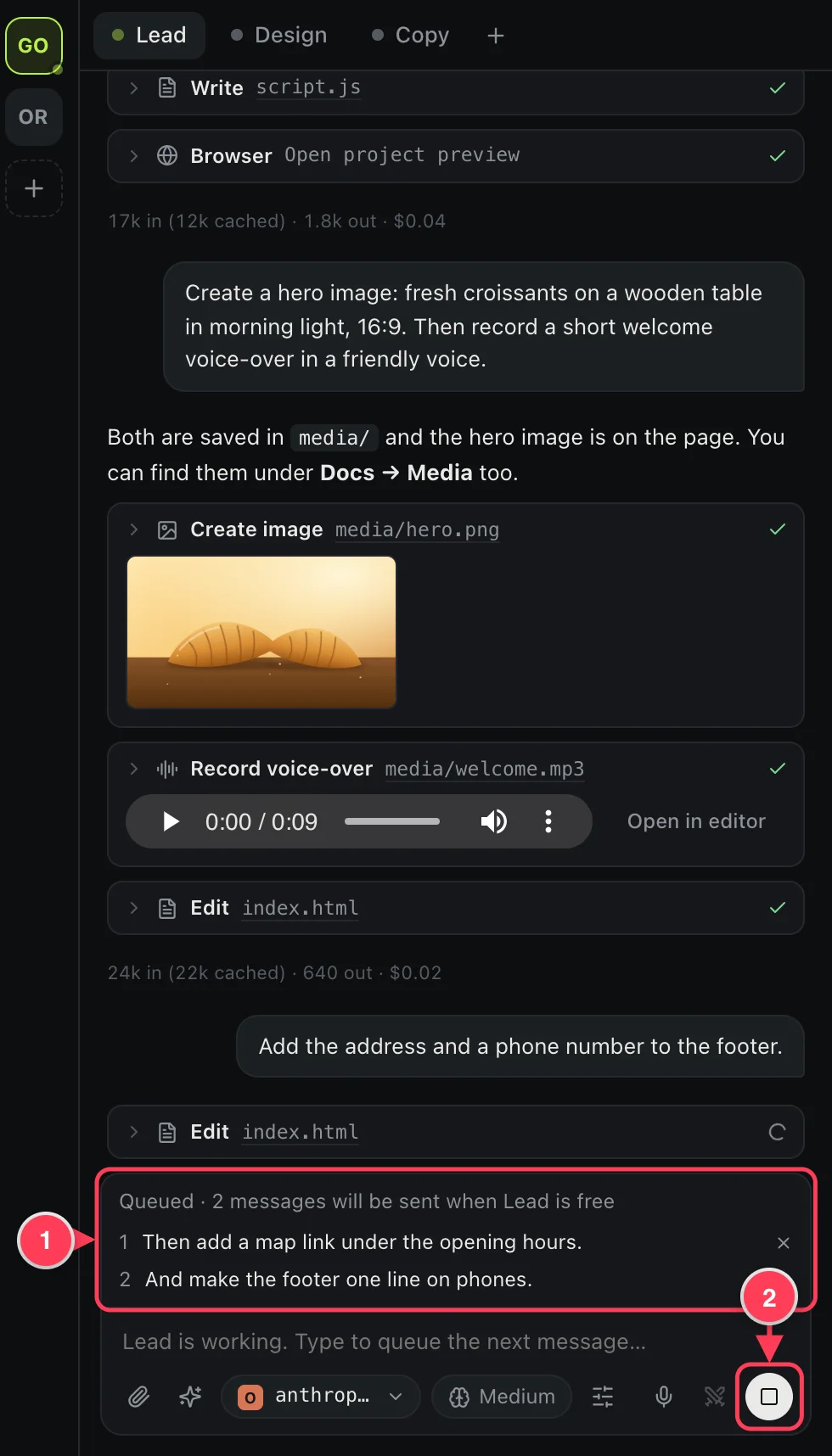
- Messages the agent has not read yet. Click × to take one back.
- Stop ends the current work.
Approve commands
Before an agent runs a command, it shows the command and waits. The tab says needs you.
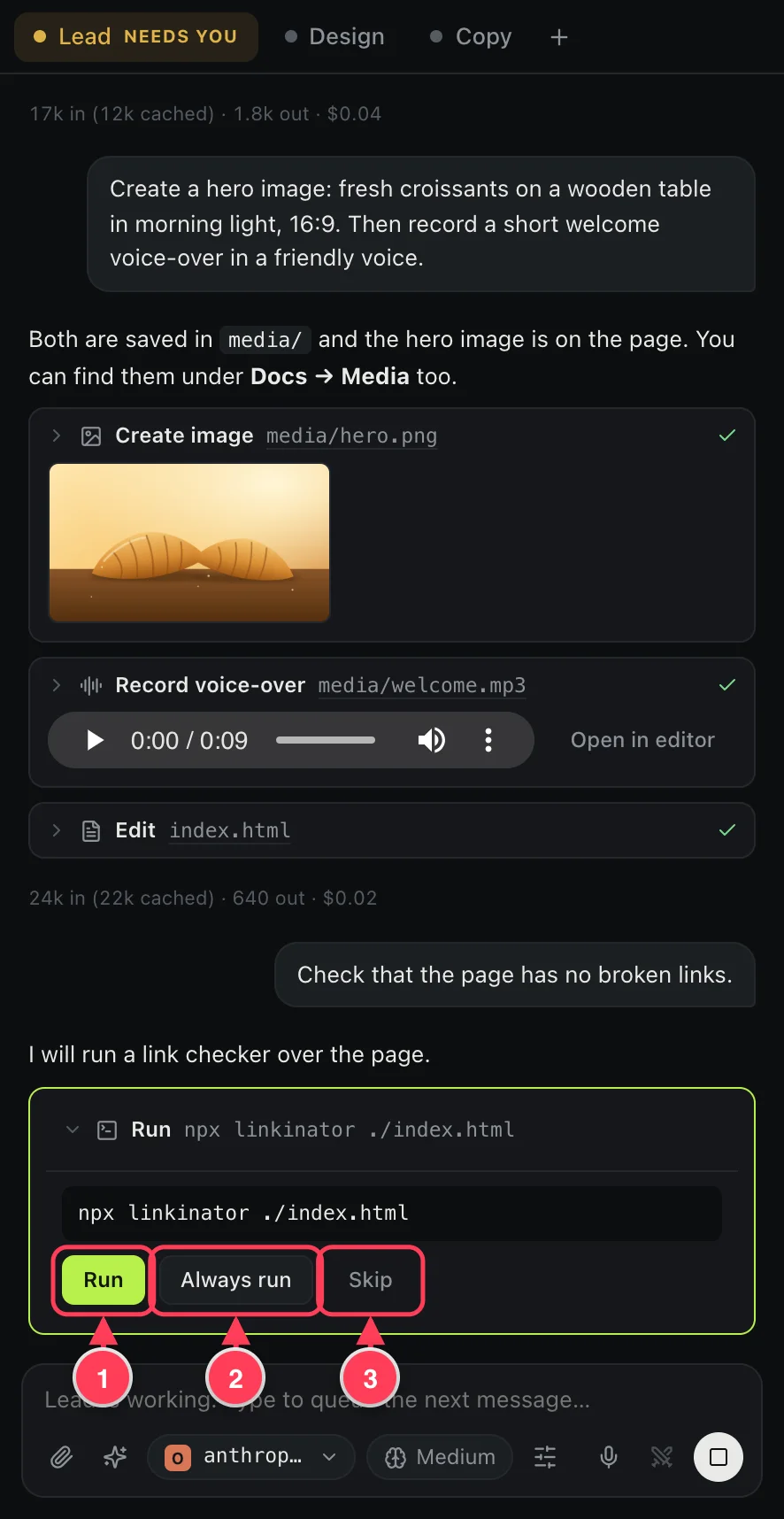
- Run allows this command.
- Always run stops asking for commands in this project until the app restarts.
- Skip tells the agent not to run it.
To never be asked, turn off Ask before agents run commands in Settings. Agents can change files only inside the project folder either way.
Change a message you already sent
Hover over one of your messages. Edit and send again lets you rewrite it; the later messages are removed and the agent answers again. Send again repeats it as it is.
If the app closes while an agent works
The work is not lost. The next time the app opens, the agent carries on by itself. You can turn this off in Settings; the agent then shows Continue and Dismiss instead.
What agents can do
- Read, write and edit files, and search the project.
- Run commands and use the terminal.
- Open the project in a browser of their own: click, type, take screenshots, read the console.
- Save sharp screenshots with numbered arrows, for documentation and tutorials.
- Record a video of a page being used, with a visible pointer, and film animations frame by frame (videos need ffmpeg on your computer).
- Collect information from websites and fill in forms.
- Search the web and read pages.
- Read and update the plan.
- Create images, voice-overs and video, and transcribe audio, when a model is set for it.
- Hand work to other agents.