 VibeCode
Run and preview your project
The Preview view shows your project running on your own computer. A plain web page appears with no setup. A project that needs a server is started with one click.
Open the preview
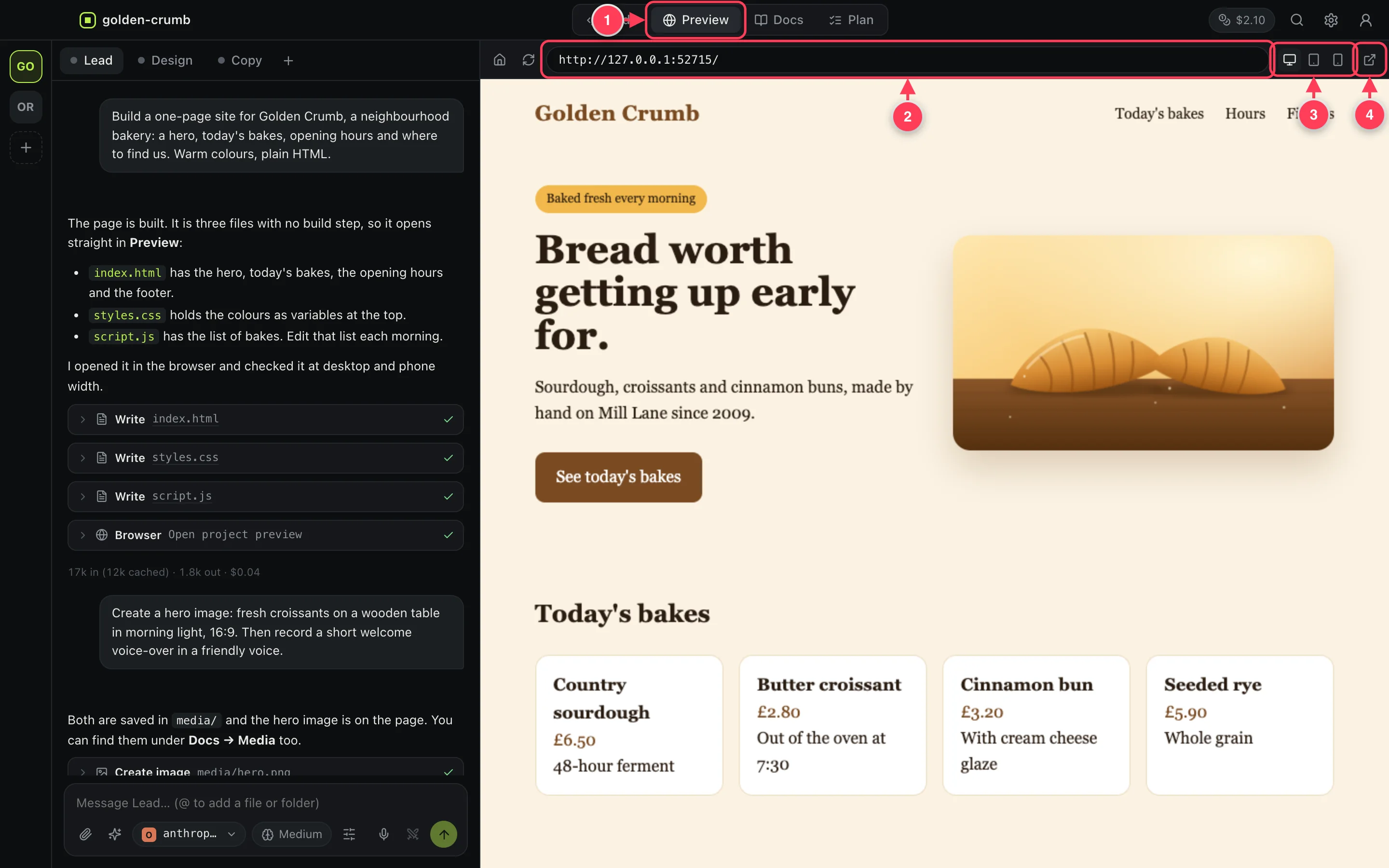
- The Preview view.
- The address being shown. Type another one, such as
localhost:3000, and press Enter. - Desktop, tablet and phone sizes.
- Open in browser shows the same page in your own browser.
Every project gets a small local file server, so a page made of HTML, CSS and JavaScript files works straight away. It reloads when a file changes.
Check it on a phone
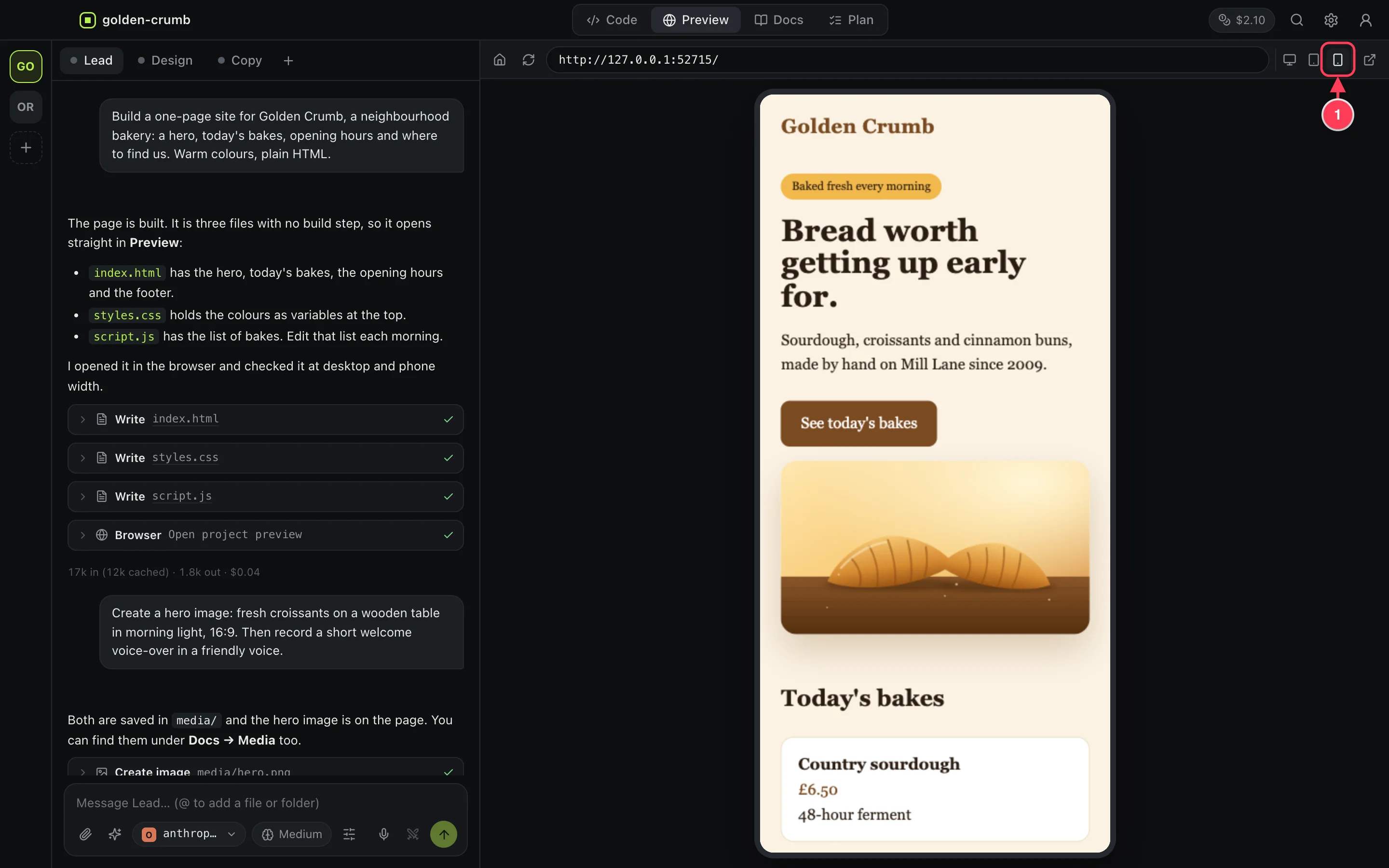
- Phone size (390 × 844). The middle button is tablet size (820 × 1180).
Start a project that needs a server
For an app with a start command, the preview offers to run it.
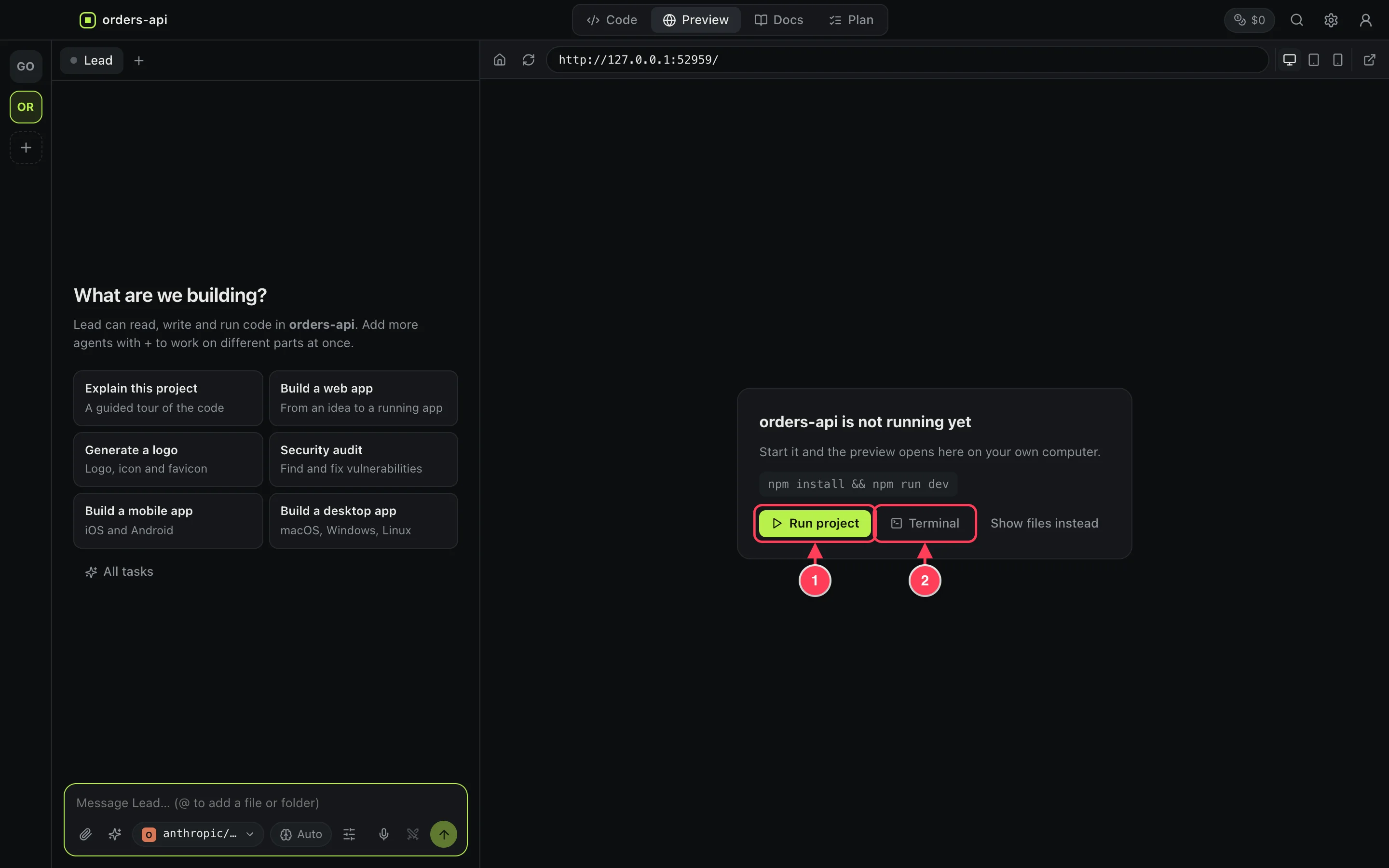
- Run project runs the command shown above the button in a terminal. The preview opens when the server is up.
- Terminal opens the terminal so you can start it yourself.
The app finds the start command from the files in the project: the dev, start or serve script of a Node project, cargo run, go run, a Django or Flask app, Rails, Flutter, .NET and others. When a server prints its address in the terminal, the preview picks it up.
Run one file
With a script open in the editor (Python, JavaScript, TypeScript, shell, Go, Rust and more), a Run button appears in the title bar. It runs that file in the terminal.
Send an error to an agent
When the terminal prints something that looks like an error, a Fix with agent button appears above it.
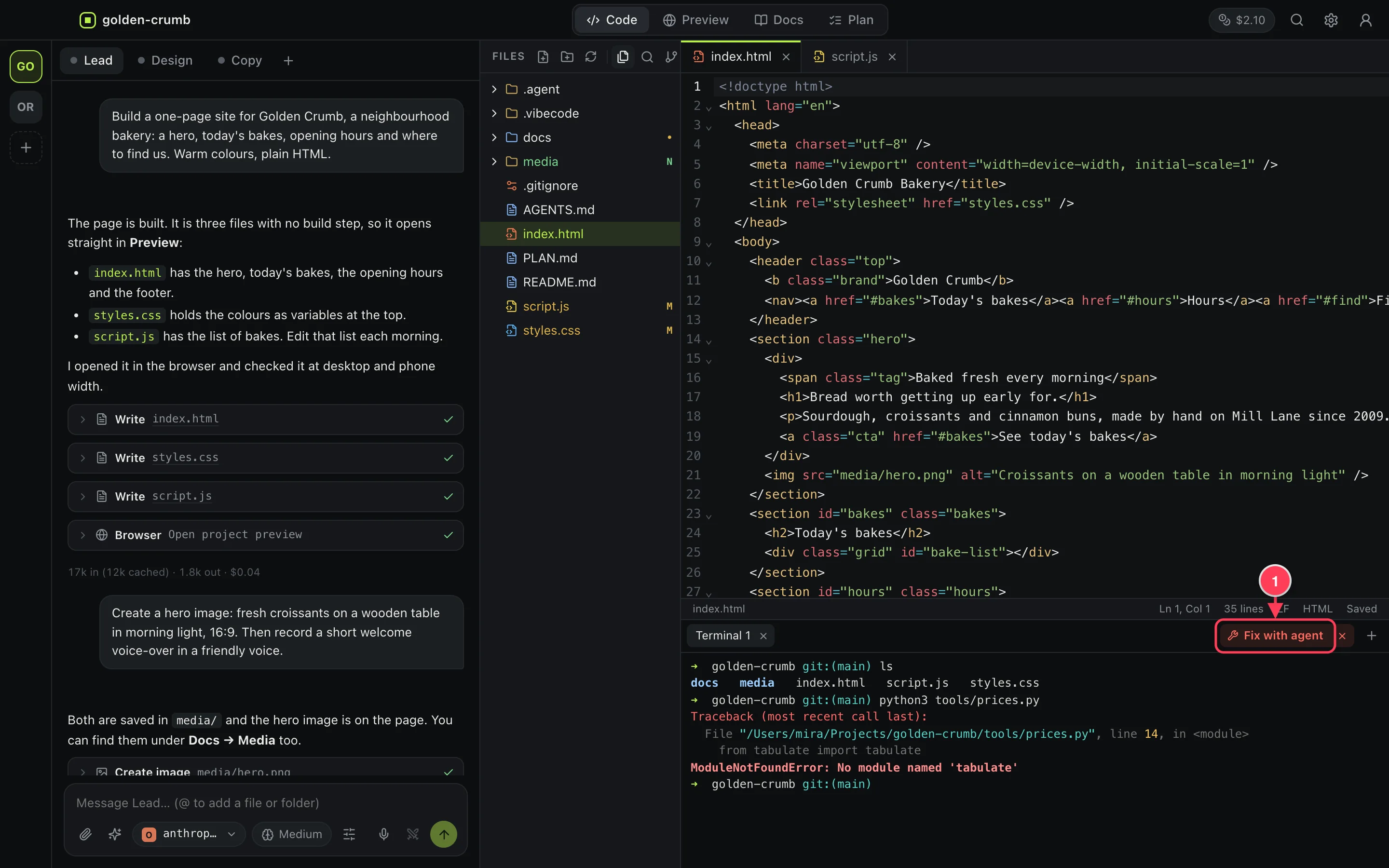
- Fix with agent sends the terminal output to the agent you are talking to.
Screenshots, recordings and videos
The agent's browser can also make things you keep. Ask in plain words:
- “Take a screenshot of the settings page with numbered arrows on the three buttons, and save it in docs/img.”
- “Record a walkthrough video of creating an order, and save it as media/tour.mp4.”
- “Make a one-minute animated explainer video for this app, with narration.”
The Tasks menu has ready-made versions: Docs with screenshots, Record a walkthrough video and Make an explainer video. Recordings show the page inside the agent's browser, not your whole screen. Videos need ffmpeg installed on your computer, and narration needs a voice model (see Images, voice, video and dictation).
Let the agent test it
Agents have a browser of their own. Ask: “Open the page, try the sign-up form on a phone-sized screen and fix what is broken.” The agent opens the project, clicks and types, looks at screenshots and reads the browser console.